
Advanced AI (Provider Mode)
AI Features /Advanced AI (Provider Mode)Use your own API keys from OpenAI, Anthropic, Google, xAI, and ElevenLabs for more control.
Provider Mode is Corkulous’s bring-your-own-key workflow: connect API keys from your own provider accounts, and Corkulous runs its AI features against them directly. You choose the providers and models, tune provider-specific settings, and pay each provider based on your usage. Provider Mode is available on Mac and on iPhone and iPad running iOS or iPadOS 26 or later. Earlier iOS and iPadOS versions use Credits mode for AI features.
Data sent to providers: AI can send your prompt, included board/conversation content, attachments, and enabled tool requests to external services. Those services may retain inputs, outputs, and technical records under their applicable policies and API terms. Review the provider privacy and data-use links before sharing sensitive information. Deleting content in Corkulous does not automatically erase copies held by those services.
Why iOS or iPadOS 26?
Provider Mode is a heavy orchestration environment. A single run can fan out into many planner and worker jobs, tool calls, web lookups, and long-running network requests.
On iPhone and iPad, long board generations rely on background processing added in iOS and iPadOS 26, which is why earlier versions use Credits mode. It can keep a board generation going after you leave the app when the system allows it, but that time isn’t guaranteed. Agent conversations and the image, audio, and video sheets don’t use it, so keep Corkulous open until long runs finish.
When to Use Provider Mode
Consider Provider Mode if you:
- Already have API accounts with AI providers
- Want to choose specific providers and models for text, image, audio, or video generation
- Need advanced features such as video generation or provider-specific configuration (document attachments are also supported in Credits mode)
- Want provider-specific tuning such as reasoning effort, timeout, temperature, top-p, or output length
- Prefer to pay providers directly based on usage
Supported Providers
| Provider | Features |
|---|---|
| OpenAI | Text generation, image creation, audio, web search |
| Anthropic | Claude models for text generation, native web search |
| Gemini models for text, image generation (Imagen), video (Veo) | |
| xAI | Grok models for text generation, image creation, video, native web search |
| ElevenLabs | Music generation and premium text-to-speech voices |
Quickstart (Mac)
OpenAI is still a strong default for text work, Agent requests, images, audio, and OpenAI Web Search, but it no longer covers video in Corkulous. If you want video generation too, pair OpenAI with Google Veo or xAI.
- Get an OpenAI API key from your OpenAI account dashboard.
- If you want video generation, also get a Google or xAI API key.
- Open AI Settings in Corkulous (Settings → AI Settings).
- Select “Provider Mode” instead of Credits.
- Go to the Providers tab and paste your OpenAI key. Add Google or xAI as well if you want video.
- In the General tab, set your defaults:
- Text / Agent: OpenAI
- Images: OpenAI or Google
- Audio: OpenAI
- Video: Google or xAI
- In each provider card, choose the models and saved defaults you want Corkulous to reuse.
- Enable tools or workers only when you need them, such as web search, music, or multi-agent board generation.
This gives you a practical default setup: OpenAI for everyday generation and search, plus Google or xAI when you need video.
To add music generation in Provider Mode, configure ElevenLabs in its provider card, then enable the Music tool in the Tools tab if you want music through the Agent or board generation.
Setup Path
Use these pages in order when configuring Provider Mode:
- Setting Up API Keys — Add provider keys, enable providers, and test connections.
- Choosing AI Models — Select text, image, audio, music, and video models.
- Web Search Tools — Add current-information search when a board needs fresh facts.
- Video Generation — Configure Google or xAI video models.
- Tools Configuration — Enable tools such as OpenAI Search, HTTP Fetch, Bash, music, and caching.
- Workers and Orchestration — Tune multi-agent board generation for research, media, and parallel work.
- Advanced Settings — Adjust provider tuning, timeouts, routing, and diagnostics.
Settings Layout
AI settings in Provider Mode are organized into five tabs:
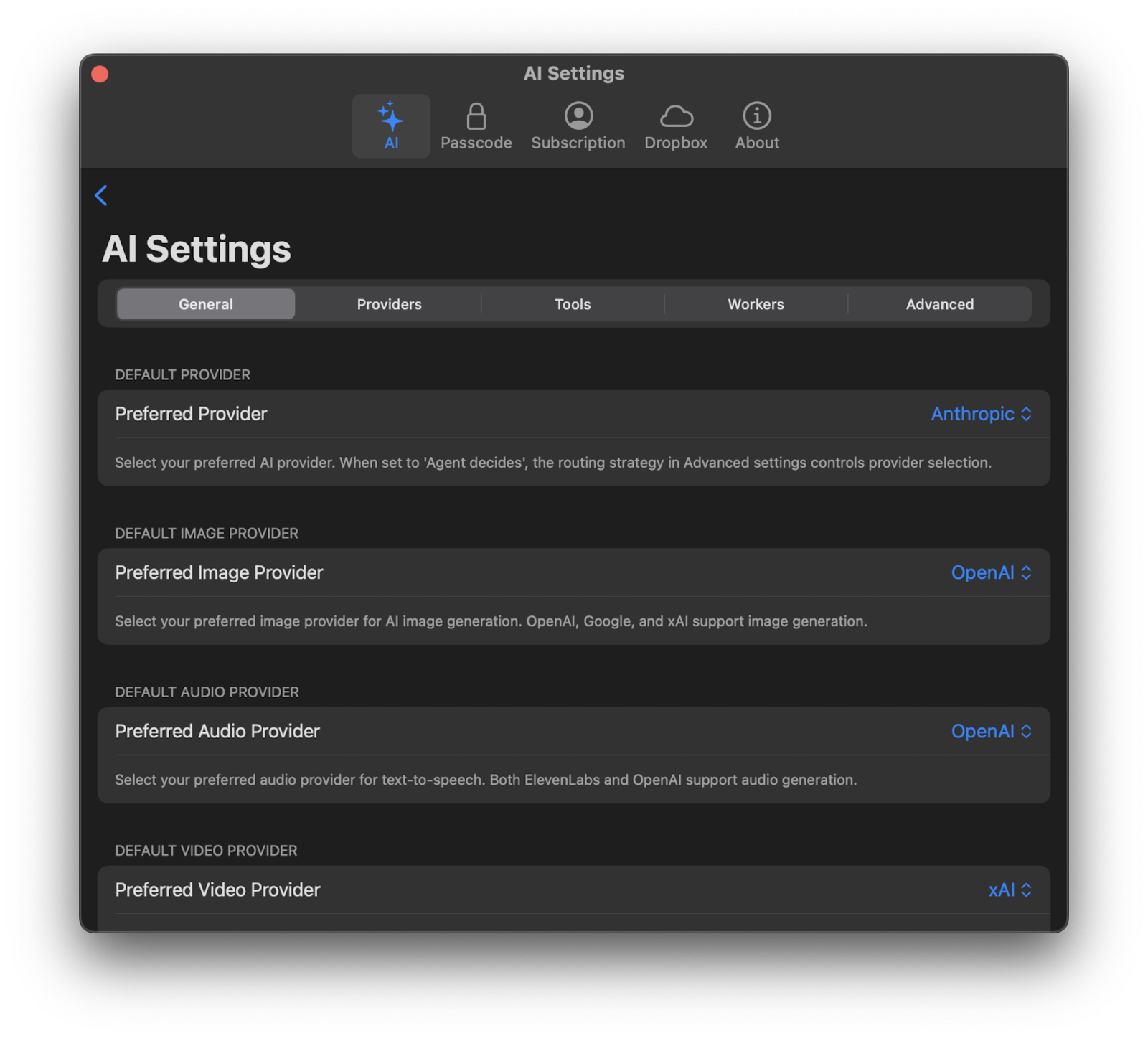
- General — Choose your preferred providers for text, image, audio, video, and web search.
- Providers — Enter API keys, test connections, select models for each provider, and open each provider card’s nested Defaults and Advanced sections.
- Tools — Configure web search tools, HTTP fetch, bash execution, tool cache, third-party API keys, and the Music tool toggle used by the Agent and board generation.
- Workers — Set multi-agent orchestration, worker intensity, parallel worker count, and worker timeout for larger board-generation runs.
- Advanced — Configure routing strategy and other global diagnostics. Model tuning now lives inside each provider card.
How Provider Defaults Work
In Provider Mode, media-capable provider cards include a nested Defaults section above Advanced. Use it to save provider-scoped media defaults such as:
- Image size, aspect ratio, quality, style, and count
- Narration voice and output format
- Music duration, instrumental mode, and output format
- Video duration, aspect ratio, resolution, and audio preference
Anthropic does not have a Defaults section because it does not provide those media generation paths in Corkulous.
These defaults are shared across the app:
- Generation views for images, audio, music, and video open with the saved defaults for the selected provider and model.
- Changes you make inside a generation sheet are one-off request settings unless you return to Provider Settings and update that provider card.
- Reopening a generation sheet resets it to the saved provider defaults.
The Agent and AI board generation use the same defaults. In Provider Mode, Corkulous normalizes the current provider, model, and voice selections and snapshots the effective defaults when a run starts. Workers and tool calls use that snapshot for the life of the run. If a tool call omits size, voice, duration, resolution, or output format, Corkulous fills in the missing values from the active provider defaults.
If you change a provider’s model, Corkulous immediately re-evaluates the saved defaults for that model. Unsupported options are clamped, disabled, or repaired automatically, so removed models, voices, or resolutions do not break future runs.
For the full model and defaults walkthrough, see Choosing AI Models.
What Provider Mode Unlocks
Provider Mode adds these advanced features:
- Document attachments for board generation from PDFs and text documents.
- Video generation with Google or xAI. See Video Generation.
- Music generation with ElevenLabs. See AI Music Generation.
- Web research with native provider search, OpenAI Search, Brave, Firecrawl, Perplexity, or URL fetching. See Web Search Tools.
- Tool configuration for search, fetch, bash, caching, and music tool access. See Tools Configuration.
- Worker orchestration for board generation that can combine planning, research, images, narration, music, and board assembly in one run. See Workers and Orchestration.
- Provider-specific tuning for reasoning, timeout, output length, temperature, and top-p. See Advanced Settings.
Document Attachments
Attach PDFs or documents when generating boards. AI uses the attached document as the primary source, extracting specific content, terminology, and structure rather than generating generic content. For example:
- Attach meeting notes to create a summary board
- Attach a research paper to create a visual overview
- Attach project specs to generate a roadmap board
Note: Attachments also work in the Agent. Attach PDFs, images, or text files to a message and ask the Agent to build on them.
Costs
In Provider Mode, you pay each provider directly based on their pricing. Costs depend on the selected models, amount of generated text, tool calls, and generated media such as images, audio, music, or video. Monitor usage in each provider dashboard.
Unlike Credits mode, Corkulous does not settle these costs through a Corkulous credit balance. The provider account attached to each API key is billed separately.
