Use folders and cloud services
Store boards locally or sync across devices with iCloud or Dropbox.
Corkulous organizes your boards into collections (folders) that can live locally on one device or sync through the cloud. Choose where to store each board based on how you work — everyday syncing with iCloud, larger libraries with Dropbox, or local storage on one device.
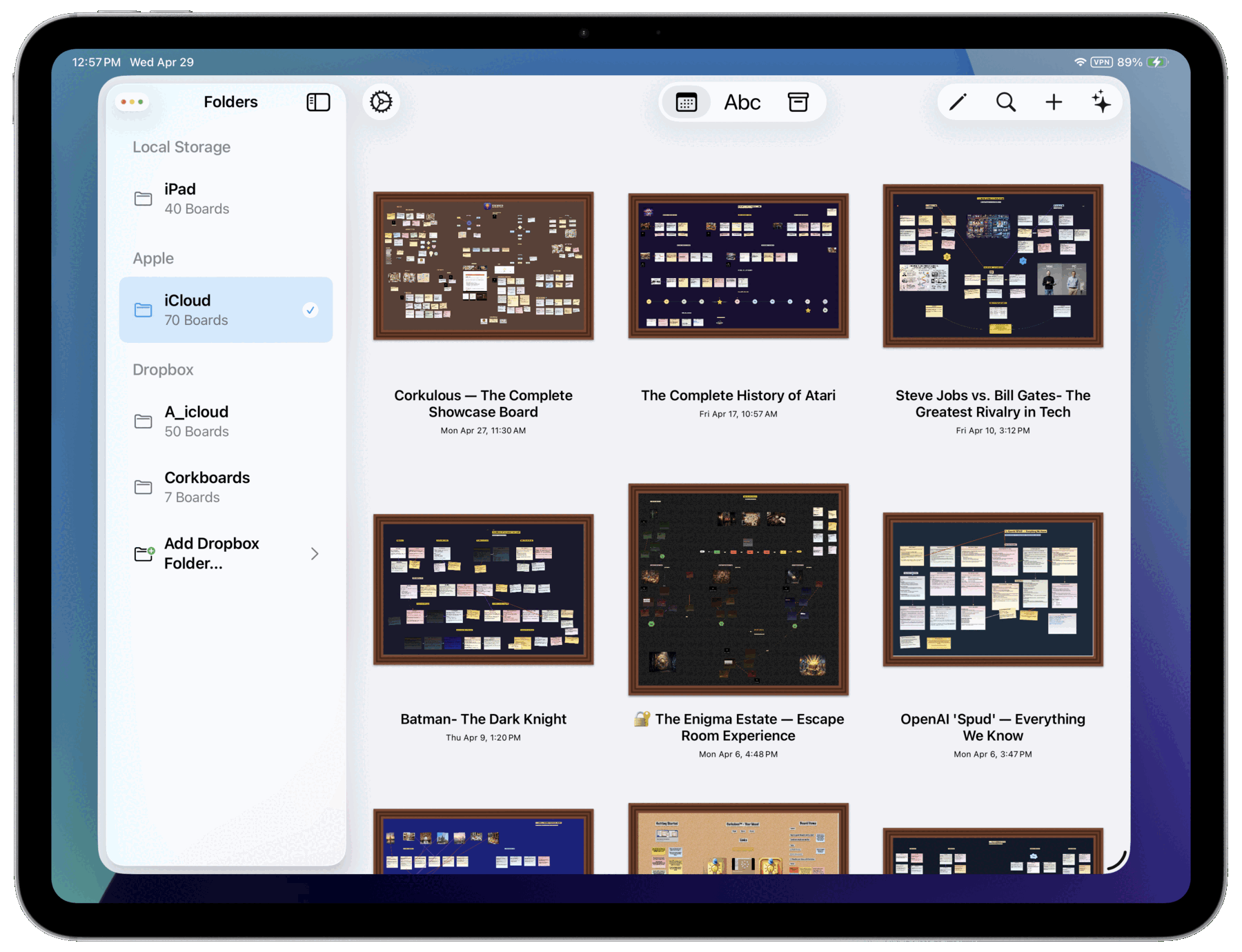
For a more detailed explanation of how sync behaves in Corkulous, see Understanding Sync.
Local Storage
Local boards are stored only on this device. Use local storage when:
- You don’t need cloud sync
- You want to keep certain boards private to one device
- Cloud services are unavailable
Tip: Use cloud storage to synchronize devices, and keep a separate backup of important boards. Sync can propagate deletions or unwanted changes; it is not an independent backup. Device backups may also include local boards. Sending a board to AI, exporting it, or connecting an assistant can disclose its content even when the board is stored locally.
iCloud
Sync boards across all your Apple devices automatically. Your boards appear in iCloud Drive under the Corkulous folder.

- Boards sync automatically when you make changes
- The same boards are available on iPhone, iPad, and Mac
- Double-click any
.corkulousfile in Finder to open it - Best for convenience and everyday Apple-device syncing
Dropbox
Sync boards through your Dropbox account. You can create multiple Dropbox folders for different projects or teams.
To add a Dropbox folder:
- Tap or click Add Dropbox Folder.
- Sign in to your Dropbox account — via the Dropbox app on iOS, or a web browser on Mac.
- Choose a folder in your Dropbox.
- Tap or click Save.
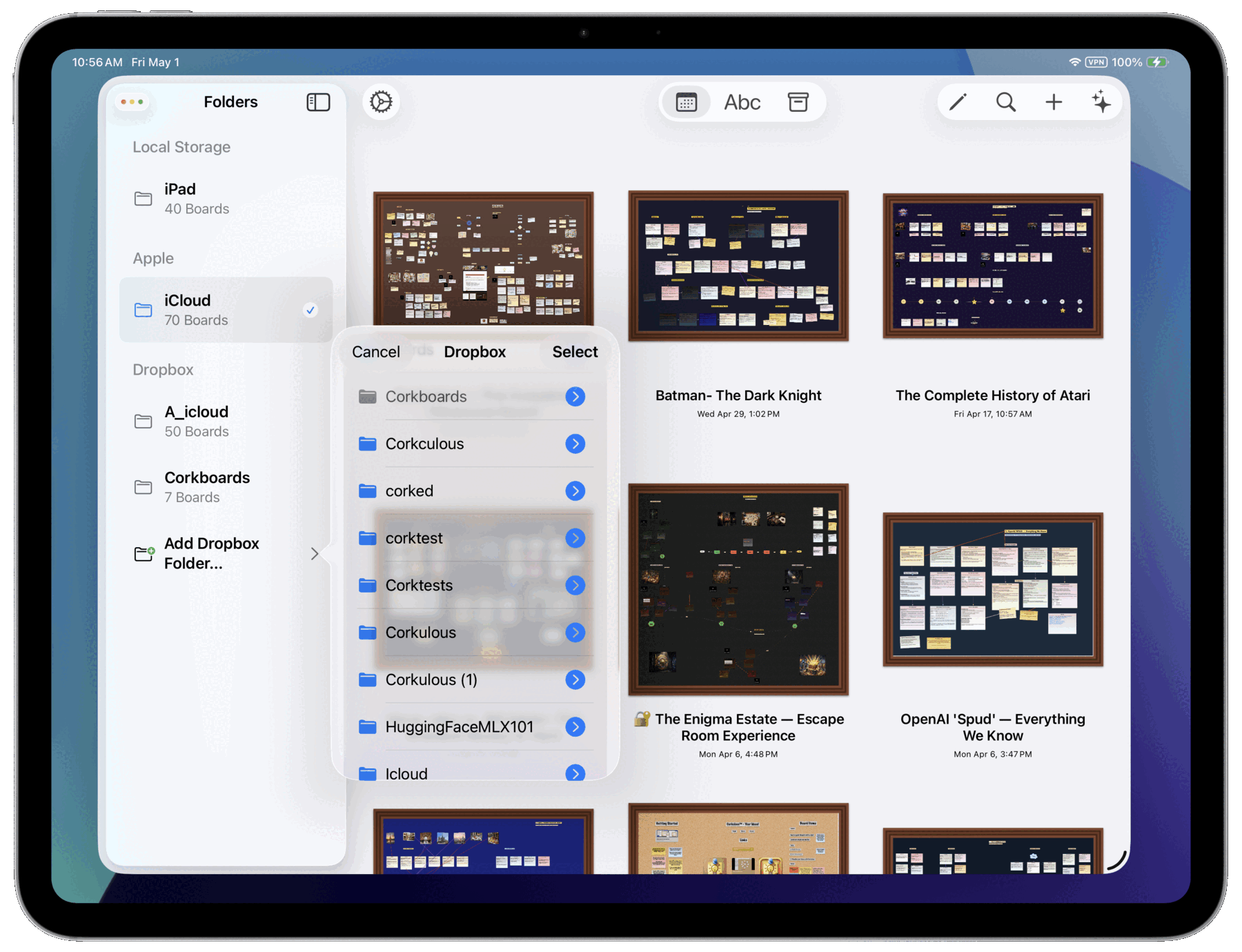
Your Dropbox folder now appears in the sidebar, and boards sync automatically.
Tip: If you expect to manage a high volume of boards or work heavily across multiple devices, consider Dropbox and split your boards across multiple collections. See Understanding Sync for guidance.
If Dropbox Linking Does Not Complete
Authorization may open the Dropbox app or a browser, then return to Corkulous. Wait for Corkulous to confirm the linked account before creating a collection. If it returns without linking, check connectivity and whether a VPN or network filter is interfering with Dropbox’s authorization connection. If permitted by your network policy, compare with another trusted connection. Do not repeatedly authorize without checking the result, or remove local boards to troubleshoot an account link.
