
Add link previews
Add and edit items to a board /Add link previewsAdd web links with automatic previews showing the page title and thumbnail.
Add web links to your board as rich previews that show the page title, description, and thumbnail image. Links remain clickable in exported PDFs.
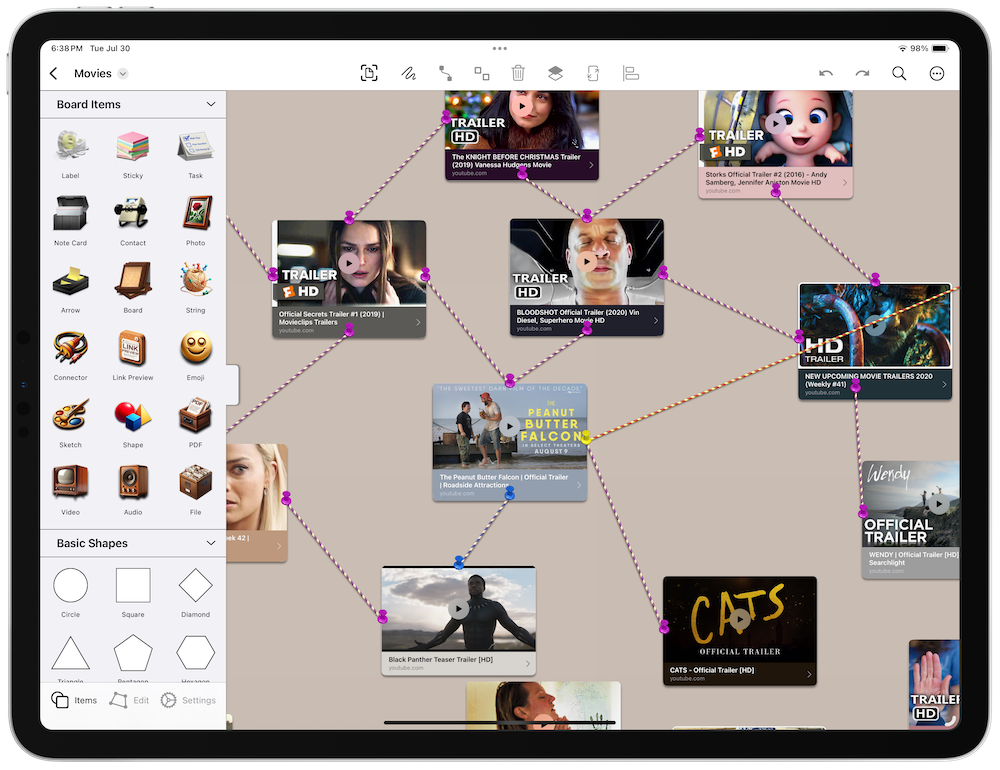
Add a Link Preview
On iPadOS or macOS, open the shelf on the left side of the screen. On iPhone, the shelf slides up from the bottom. Then:
- Add a Link Preview: Tap the link preview item in the shelf to add it to the board.
- Add a URL: Paste a URL from the clipboard or type one manually, then confirm.
Tips
- YouTube Links: YouTube previews include a play button so you can start the video directly in the preview. Note: Videos start muted, with a mute button in the corner.
- Social Links: Social media posts from Twitter, Threads, and Mastodon are supported.
- Create Similar Items: Press
Shift-Command-Nto quickly create a similar item. - Connect Items: On iPad/Mac, enable connector mode (the link button in the overlay controls), select an item, then drag from the arrow handles that appear. Or select two items and tap the pin button in the toolbar. See Organize items with lines for details.
- Drag and Drop or Paste: Add links by dragging and dropping or pasting URLs onto the board. Learn about drag and drop on iPadOS from Apple Support.
- Automation: Add links to boards automatically with Shortcuts actions.
Next > Add an emoji
