
Add sketches
Add and edit items to a board /Add sketchesCreate freehand drawings with pens, markers, and shape detection.
Create freehand drawings and illustrations with Corkulous’s built-in sketch tool. Draw with pens, markers, and pencils, and use shape detection to create perfect circles, rectangles, and triangles.
Add a Sketch
On iPadOS or macOS, open the shelf on the left side of the screen. On iPhone, the shelf slides up from the bottom. Then:
- Add a Sketch Item: Tap the sketch item in the shelf to add it to the board.
- Edit the Sketch: The sketch canvas opens. Draw your sketch, then save it back to the board.
The Sketch Canvas
Corkulous has its own sketch component. While Apple’s tools let you mark up a photo, Corkulous adds more: shape detection for lines, circles, triangles, and rectangles so you can draw them cleanly; drag and drop of photos so you can add multiple images to the canvas; and background options like color, tile, and grid.
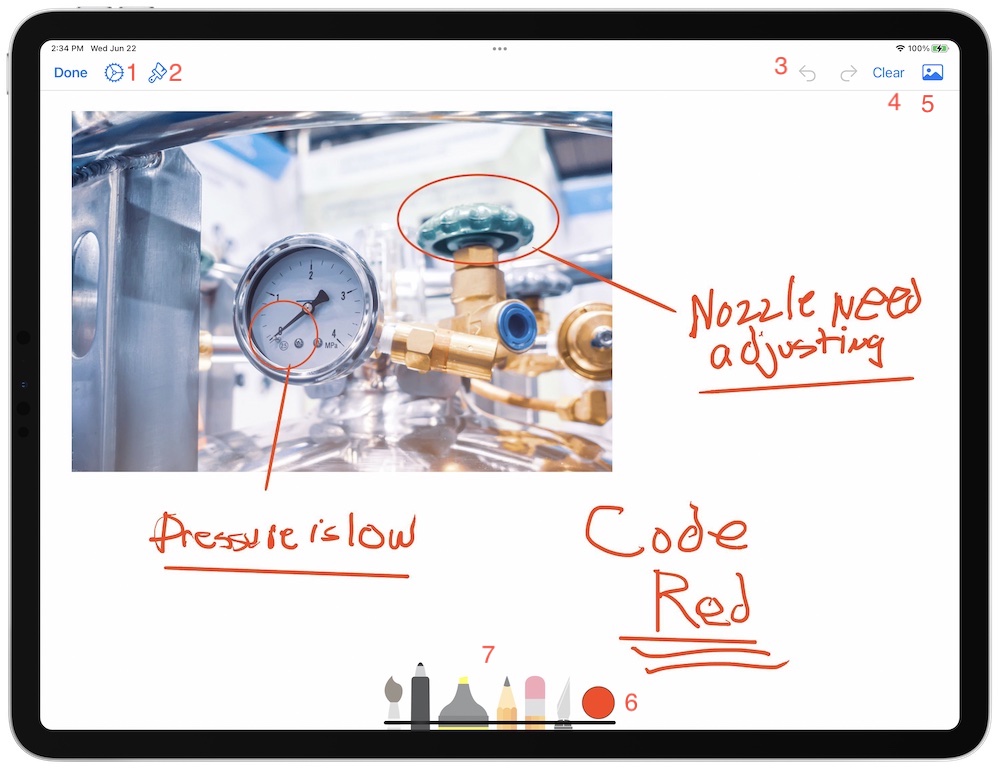
- Settings: Options include:
- Turn shape detection on or off.
- Change Apple Pencil behavior.
- Adjust stroke width for each tool.
- Change marker transparency.
- Background Options: Set the background color or tile, make it transparent, or add a grid.
- Undo and Redo: Undo and redo changes as you sketch. You can also set Apple Pencil double-tap to undo. When you save, the sketch is flattened.
- Clear: Clear the canvas (you can undo if needed).
- Add Media: Add media from Photo Library, Files, or Camera, and resize it before placing it. There is also a menu item to share the current canvas.
- Color Palette: Change the stroke color with the color palette.
- Sketch Tools: Available tools include:
- Paint Brush: thick stroke.
- Pen: medium stroke.
- Marker: thick, translucent stroke.
- Pencil: thin stroke.
- Eraser: removes strokes.
- Lasso Tool: encircle items to move or resize them. Tap to copy and paste.
Tips
- Transparent Backgrounds: Sketches can use transparent backgrounds so they blend into the board. Choose this from the edit (paint brush) menu.
- Create Similar Items: Press
Shift-Command-Nto quickly create a similar item. - Connect Items: On iPad/Mac, enable connector mode (the link button in the overlay controls), select an item, then drag from the arrow handles that appear. Or select two items and tap the pin button in the toolbar. See Organize items with lines for details.
- Automation: Add sketches to boards automatically with Shortcuts actions.
Next > Add PDFs
