
Command Line Tool
Corkulous includes a macOS command-line tool for listing, exporting, generating, importing, and automating boards from Terminal.
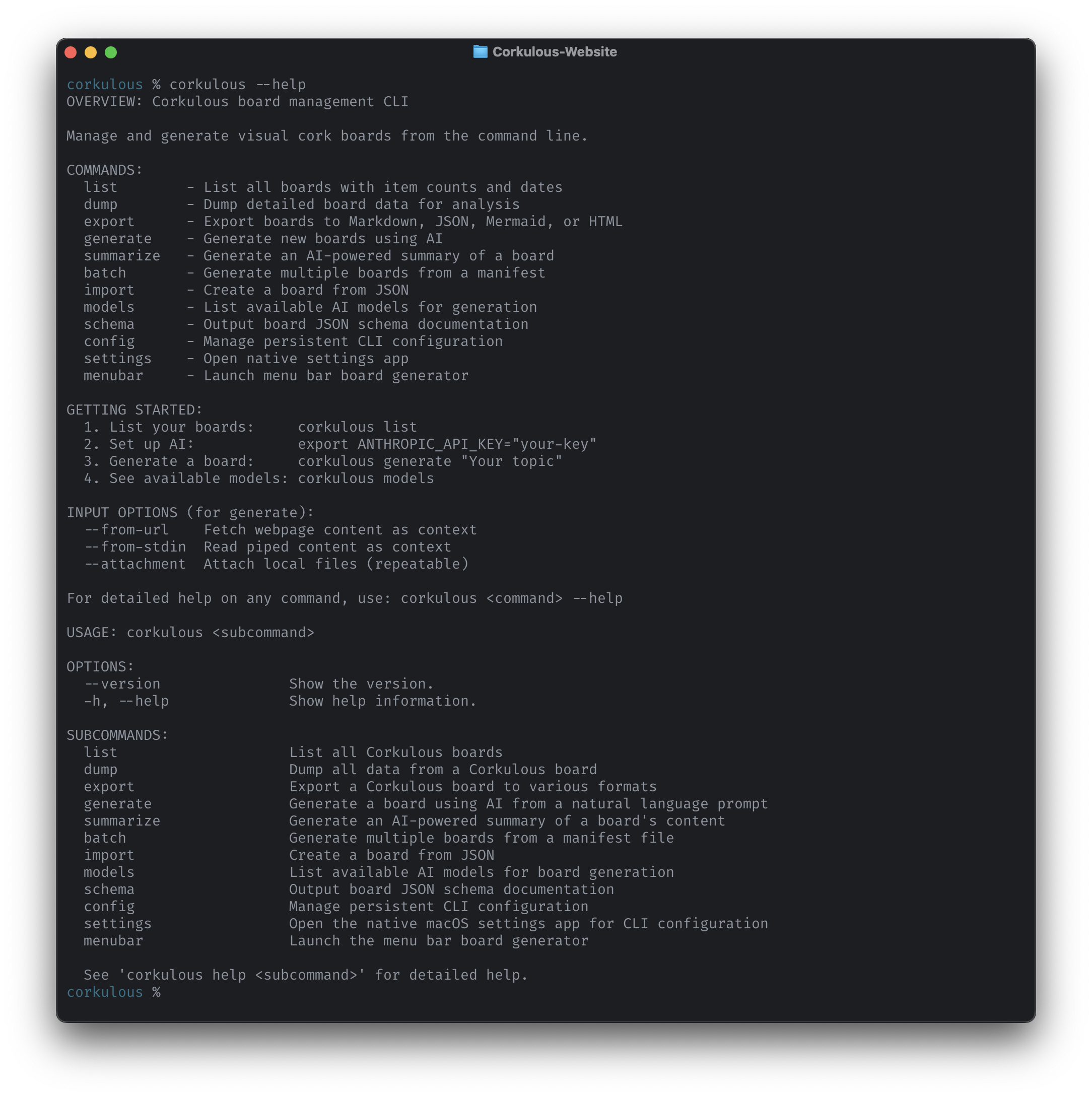
The Corkulous CLI brings your boards to Terminal. Inspect and export boards, generate new boards with AI, import boards from JSON, and wire it all into your existing shell workflows.
Note: The CLI is Mac only — it ships with the Corkulous Mac app and is not available on iPhone or iPad.
What You Can Do
- Launch a menu bar board generator for quick access
- List recent boards and available storage collections
- Export boards to JSON, Markdown, Mermaid, or HTML
- Generate new boards from prompts, files, URLs, or piped input
- Import boards directly from JSON
- Batch-generate multiple boards from one manifest file
- Configure persistent defaults with a native macOS settings app
- Connect AI assistants (Claude Desktop, Claude Code, Codex, Cursor) to your boards via MCP
Installation
Install the CLI from Corkulous > Settings > CLI & Agents, then choose Install… and follow the installer. File > Install CLI Tool… also opens the installation flow. If the destination requires administrator access, use the provided Copy Install Command and run that command in Terminal.
The installer uses a writable Homebrew bin folder when available; otherwise it offers /usr/local/bin. Apple Silicon Homebrew normally uses /opt/homebrew/bin, while Intel Homebrew normally uses /usr/local/bin. Homebrew itself is not required to use the CLI.
Confirm the installed command:
command -v corkulous
corkulous --version
corkulous --help
Allow Board Access
macOS keeps other programs out of an app’s data until you allow them, and it doesn’t ask command-line tools for permission. The first time macOS blocks the CLI, it stops with instructions instead of showing an empty board list and offers to open System Settings > Privacy & Security > Files & Folders.
There, turn on both switches, Corkulous (your boards) and Data shared by Corkulous CLI Settings and affiliated apps (your CLI settings), under the app that ran corkulous:
- Corkulous CLI when an AI app such as Claude Desktop runs it
- Terminal, or your editor, when you run
corkulousthere
Then quit and reopen that app. You only need to do this once; the approval carries over to later Corkulous updates. CLI & Agents has an Open Privacy Settings… button for the same page.
After updating Corkulous, use Reinstall… in CLI & Agents to refresh an older installed CLI. Reinstall when the pane asks you to: older launchers prepare a copy of the CLI that macOS can’t approve for AI apps. If Terminal finds the wrong copy, use type -a corkulous to identify multiple installations before changing your PATH or removing anything.
AI generation from the CLI, its settings app, and its menu bar helper uses provider API keys and separate provider billing. It does not spend your Corkulous Credits balance. Listing, importing JSON, and exporting boards do not require a model-generation request. Multi-agent generation can make several billable requests; start with a small prompt and --no-multi-agent when checking your setup.
Data sent to providers: AI can send your prompt, included board/conversation content, attachments, and enabled tool requests to external services. Those services may retain inputs, outputs, and technical records under their applicable policies and API terms. Review the provider privacy and data-use links before sharing sensitive information. Deleting content in Corkulous does not automatically erase copies held by those services.
Quick Start
# List your recent boards
corkulous list

# Open the native settings app
corkulous settings

# Launch the menu bar generator
corkulous menubar

# Generate a small board using your configured provider
corkulous generate "Create three notes about coffee brewing methods" --name "Coffee Brewing Methods" --no-multi-agent

# Export a board to Markdown
corkulous export "Coffee Brewing Methods" --format markdown
Configure the CLI
Corkulous supports both environment variables and persistent saved defaults.
Native Settings App
Run:
corkulous settingsThis opens the native macOS settings app for the CLI, organized into six sections:
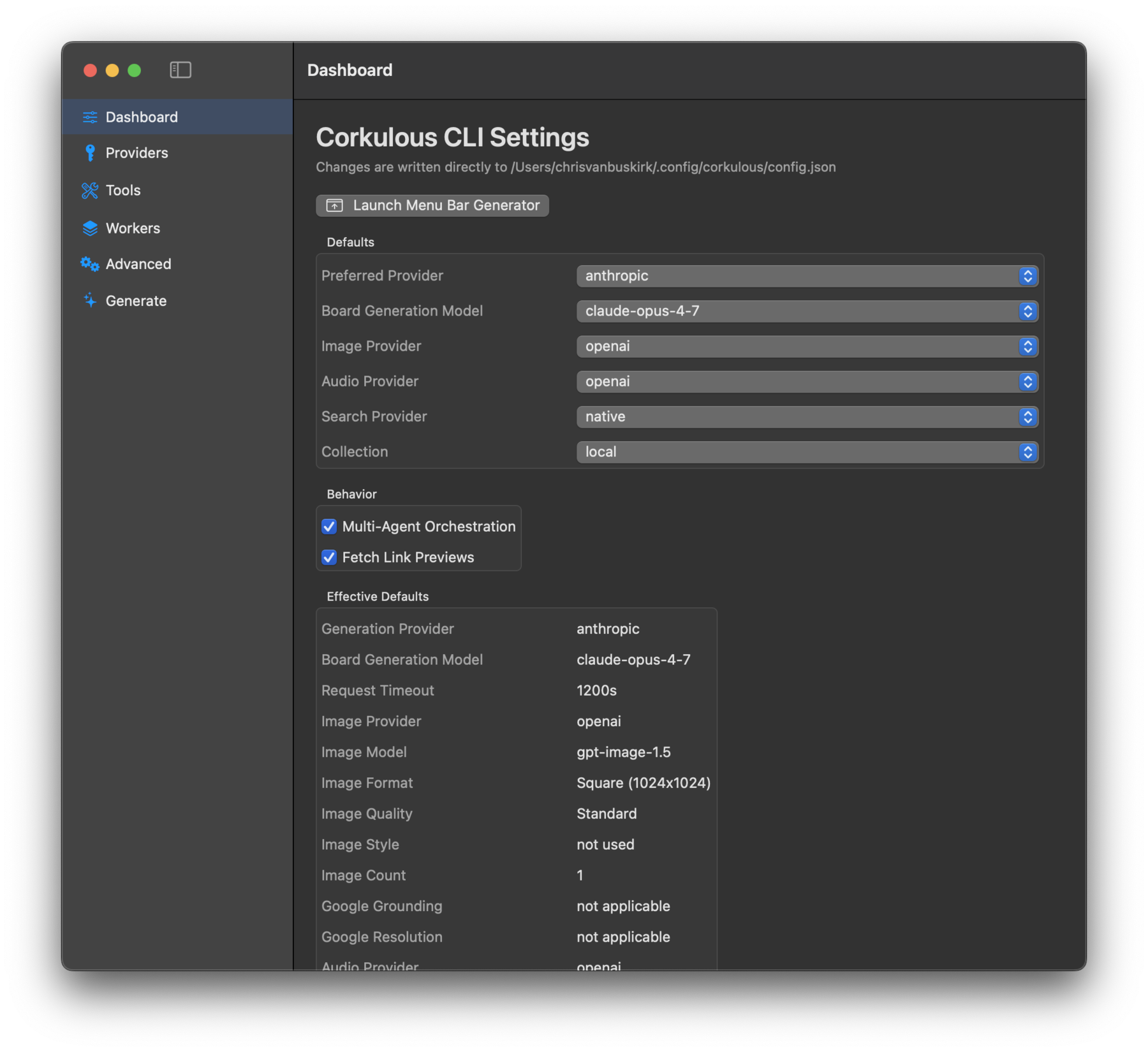
- Dashboard: Preferred generation, image, audio, search, and storage defaults.
- Providers: Provider enablement, API keys, model defaults, and ElevenLabs.
- Tools: Brave, Firecrawl, Perplexity, and related tool toggles.
- Workers: Worker intensity slider, individual agent limits, parallelism, and timeout.
- Advanced: Model tuning, reasoning effort, and timeout defaults.
- Generate: Generate boards directly from the settings app without using Terminal.
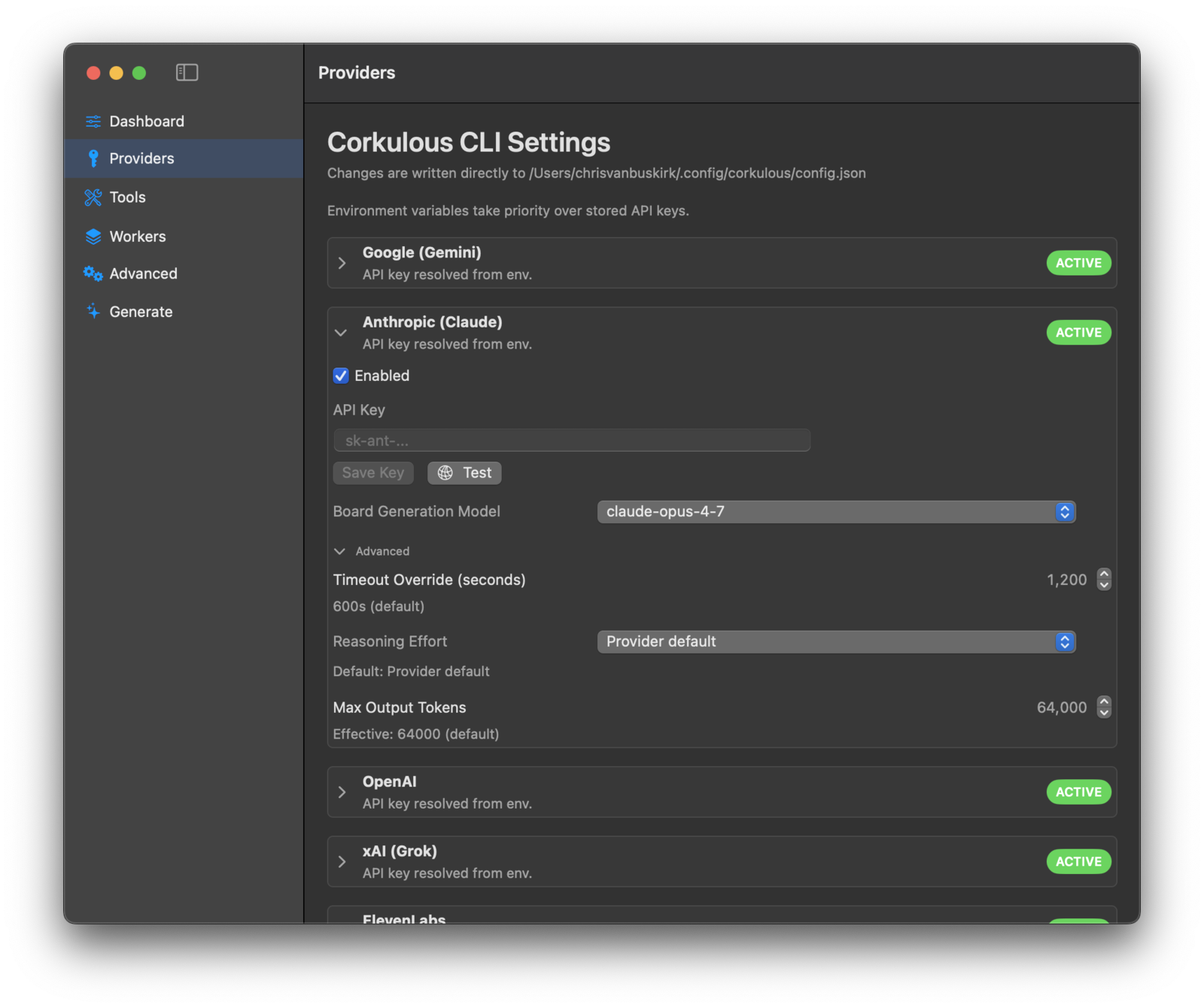
Use the Providers pane to enable providers, confirm whether keys resolve from saved config or environment variables, test provider access, choose board-generation models, and adjust provider-specific advanced options.
Persistent Config File
Saved defaults live in the Corkulous app group container:
~/Library/Group Containers/group.com.corkedlabs.corkulous/CLI/config.jsonRun corkulous config path to print the exact location. Older versions kept this file at ~/.config/corkulous/config.json. The first time you run any corkulous command after updating, it imports that file into the new location. Settings you already changed in CLI Settings are kept. The old file stays where it was but is no longer read.
Use the config command to inspect and update that file:
# Show all saved settings
corkulous config list

# Set a default provider
corkulous config set generation.provider openai

# Set a provider-specific default model
corkulous config set generation.chatModels.openai "MODEL_ID_FROM_MODELS"

# Set music worker limits
corkulous config set workers.maxMusicWorkers 1

# Show the config file path
corkulous config path

# Open the config in your editor
corkulous config edit

# See resolved environment/config status
corkulous config env
Replace MODEL_ID_FROM_MODELS with a supported ID from corkulous models --provider openai. Leaving the model unset uses the configured provider default.
Key storage: Keys saved in CLI settings are stored in this local JSON file, not the main app’s Keychain. Keep the file out of source control and shared folders, restrict access to your user, and do not paste its contents into support messages. The CLI’s configuration and keys are separate from the main app’s AI settings. Apps launched from Finder or the menu bar may not inherit variables set in a Terminal shell.
Priority Order
When a setting exists in more than one place, Corkulous resolves it in this order:
- CLI flags
- Environment variables
- Saved config in
config.json - Built-in defaults
Common Environment Variables
# AI providers
export ANTHROPIC_API_KEY="sk-ant-..."
export OPENAI_API_KEY="sk-..."
export GOOGLE_API_KEY="..."
export XAI_API_KEY="..."

# Optional search tools
export BRAVE_API_KEY="..."
export FIRECRAWL_API_KEY="..."
export PERPLEXITY_API_KEY="pplx-..."

# Optional audio/music generation
export ELEVENLABS_API_KEY="..."

# Optional worker caps
export CORKULOUS_MAX_WORKERS="7"
export CORKULOUS_MAX_PARALLEL="3"
Generate from the Settings App
The Generate pane in the settings app lets you create boards without opening Terminal:
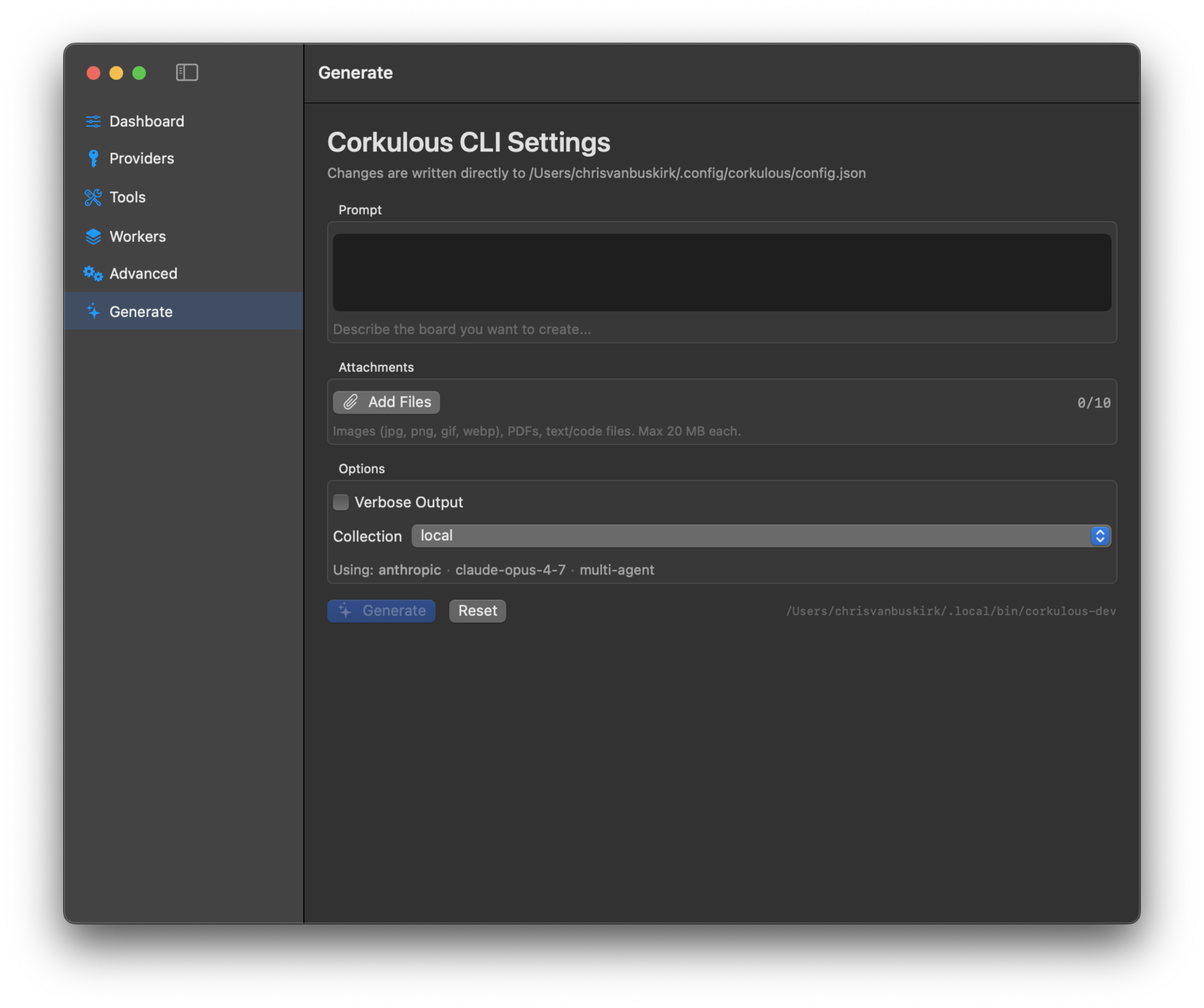
- Prompt editor: Describe the board you want.
- Attachment picker: Add images, PDFs, and text files (up to 10 files, 20 MB each).
- Verbose output toggle: Show detailed progress.
- Collection picker: Choose where the board is saved.
- Live output view: Streams CLI progress in real time.
The Generate pane uses the defaults saved in these CLI settings: provider, model, multi-agent mode, and worker limits. Keep Corkulous installed and open it to complete the import of generated boards. Cloud collections must first be configured in Corkulous; synchronization to another device is a separate step.
Supported attachment types:
- Images: jpg, jpeg, png, gif, webp
- Documents: pdf
- Text and code: txt, md, json, csv, html, xml, yaml, swift, py, js, ts, java, c, cpp, and more
Note: Images larger than 2048 pixels are automatically resized and compressed before sending to the AI provider.
Worker Intensity
The Workers pane includes a Worker Intensity slider that scales all agent counts together (images, audio, music, and research). Drag it from Minimal to Maximum to control how many media and research agents run during multi-agent generation.
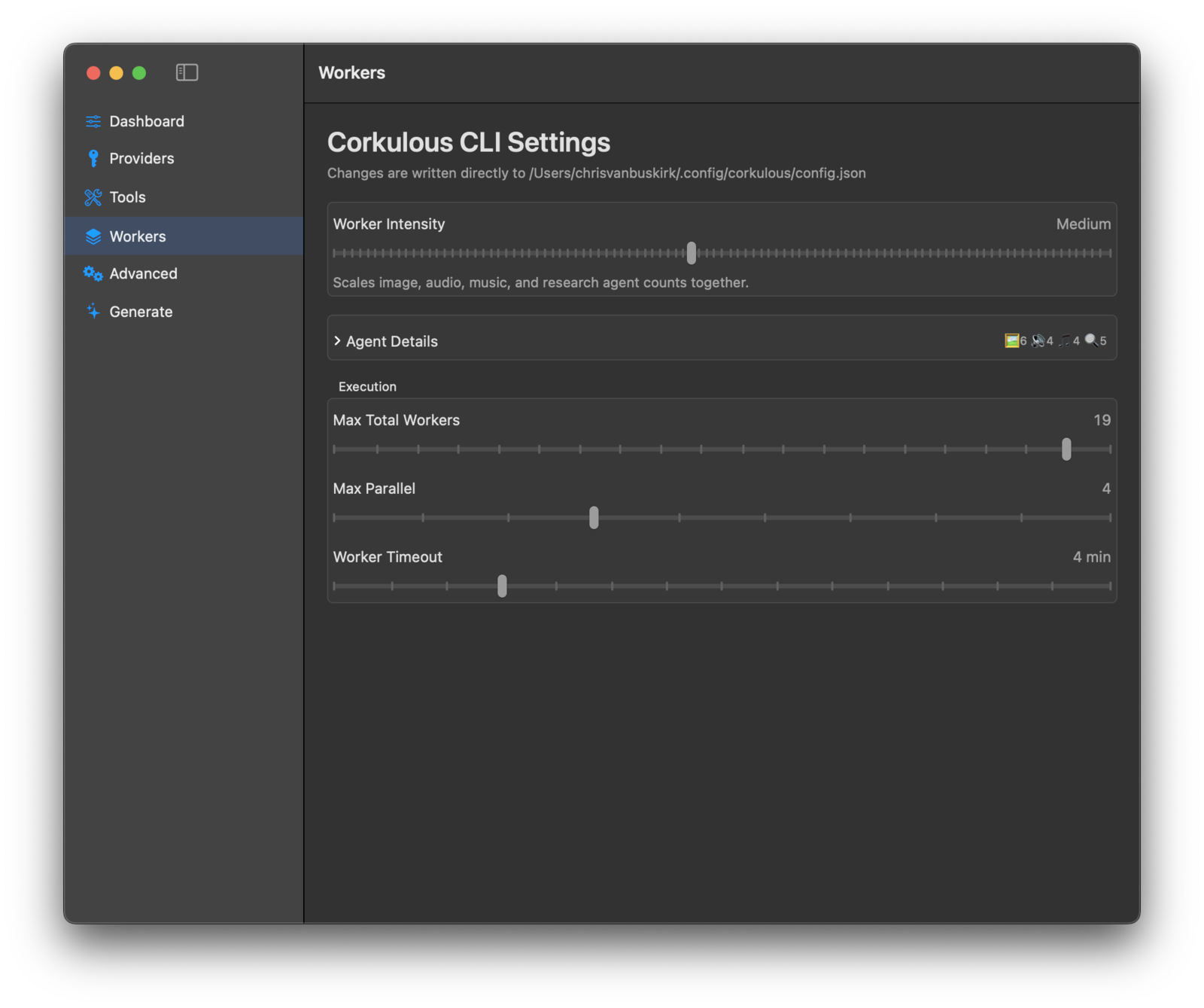
Expand the Agent Details disclosure to fine-tune individual worker limits. The intensity slider also adjusts Max Total Workers to match the sum of all agents, so they stay in sync.
Commands
list
List recent boards:
corkulous listShow available storage collections:
corkulous list --collectionsdump
Inspect one board in detail — useful for debugging layouts, checking item counts, and inspecting content previews:
corkulous dump "Board Name"export
Export a board to Markdown, JSON, Mermaid, or HTML:
corkulous export "Board Name" --format json
corkulous export "Board Name" --format markdown
corkulous export "Board Name" --format mermaid
corkulous export "Board Name" --format html --output ./exports/
HTML exports support two archive types:
# ZIP archive with viewer + media
corkulous export "Board Name" --format html --archive zip

# Safari web archive
corkulous export "Board Name" --format html --archive webarchive
generate
Create a new board from a natural-language prompt:
corkulous generate "Create a board about coffee brewing methods"Supported providers: anthropic, openai, google, xai.
Examples:
# Use a specific provider
corkulous generate "Team org chart" --provider openai

# Use a specific model
corkulous generate "History of AI" --provider openai --model "MODEL_ID_FROM_MODELS"

# Save to iCloud
corkulous generate "Team sync notes" --collection icloud

# Disable multi-agent orchestration
corkulous generate "Simple board" --no-multi-agent

# Cap workers and parallelism
corkulous generate "AI news" --max-workers 4 --max-parallel 2

# Fetch webpage content first
corkulous generate --from-url "https://example.com/article" "Summarize this article"

# Generate from piped input
cat notes.md | corkulous generate --from-stdin "Organize these notes"

# Attach local files
corkulous generate "Summarize this report" --attachment ./report.pdf
Useful options:
| Option | Description |
|---|---|
--name | Custom board name |
--provider | Choose AI provider |
--model | Choose a specific model |
--from-url | Fetch webpage content as context |
--from-stdin | Include piped input as context |
--attachment | Attach local files such as PDFs, images, or text files |
--multi-agent / --no-multi-agent | Control orchestration mode |
--max-workers | Cap total workers |
--max-parallel | Cap concurrent workers |
--collection | Save to local, icloud, dropbox, or dropbox:NAME |
--json-only | Print board JSON instead of creating a board |
--output-json | Save generated JSON to a file |
--from-json | Create a board directly from an existing JSON file |
--fetch-previews / --no-fetch-previews | Control link preview fetching |
--timeout | Request timeout in seconds |
--temperature | Generation randomness |
--verbose | Show detailed progress, including resolved image/audio providers, models, and worker status |
Music Generation
Music workers run only when all of these are true:
- ElevenLabs is enabled.
- An ElevenLabs API key is available.
- The effective music model is an ElevenLabs music model.
workers.maxMusicWorkersis greater than0.
Example:
corkulous config set providerToggles.elevenlabs true
corkulous config set workers.musicModels.elevenlabs music_v1
corkulous config set workers.maxMusicWorkers 1
summarize
Generate an AI summary of an existing board:
corkulous summarize "Board Name"Examples:
corkulous summarize "Project Roadmap"
corkulous summarize "Meeting Notes" --provider openai
corkulous summarize "Sprint Planning" --json
batch
Generate multiple boards from one JSON manifest:
corkulous batch manifest.jsonExample manifest:
{
  "defaults": {
    "collection": "local",
    "provider": "anthropic",
    "multi_agent": true
  },
  "boards": [
    { "name": "Coffee Origins", "prompt": "History of coffee cultivation" },
    { "name": "Brewing Methods", "prompt": "Different coffee brewing techniques" },
    { "prompt": "Coffee industry economics", "from_url": "https://example.com/article" }
  ]
}
Useful options:
| Option | Description |
|---|---|
--collection | Override the collection for every board in the batch |
--provider | Override the provider for every board |
--continue-on-error | Continue if one board fails |
--multi-agent / --no-multi-agent | Force orchestration behavior |
--max-workers | Override the worker cap |
--max-parallel | Override the parallel cap |
--verbose | Show detailed progress |
import
Create a board directly from JSON without using AI:
# Import from file
corkulous import --file board.json

# Import from stdin
cat board.json | corkulous import

# Override the board name
corkulous import --name "My Board" --file board.json
models
List available AI models:
corkulous models
corkulous models --provider anthropic
corkulous models --json
schema
Output the Corkulous board schema documentation — useful when generating boards programmatically or validating AI-generated JSON:
corkulous schema
corkulous schema --format json > board-schema.json
mcp-server
Run the Corkulous MCP server over stdio so AI assistant apps can read, export, and create boards:
corkulous mcp-serverYou normally don’t run this yourself — assistant apps launch it automatically once connected. See Connect AI Assistants for setup.
agents
Connect or disconnect AI assistants from Terminal:
# Show connection status for all supported assistants
corkulous agents status

# Register the MCP server (and authoring skill) with assistants
corkulous agents install

# Remove the Corkulous entry from an assistant's configuration
corkulous agents uninstall --client claude-desktop
Supported clients: claude-desktop, claude-code, codex, cursor, or all. See Connect AI Assistants for the full guide, including the corkulous-boards skill.
menubar
Launch a lightweight menu bar board generator:
corkulous menubar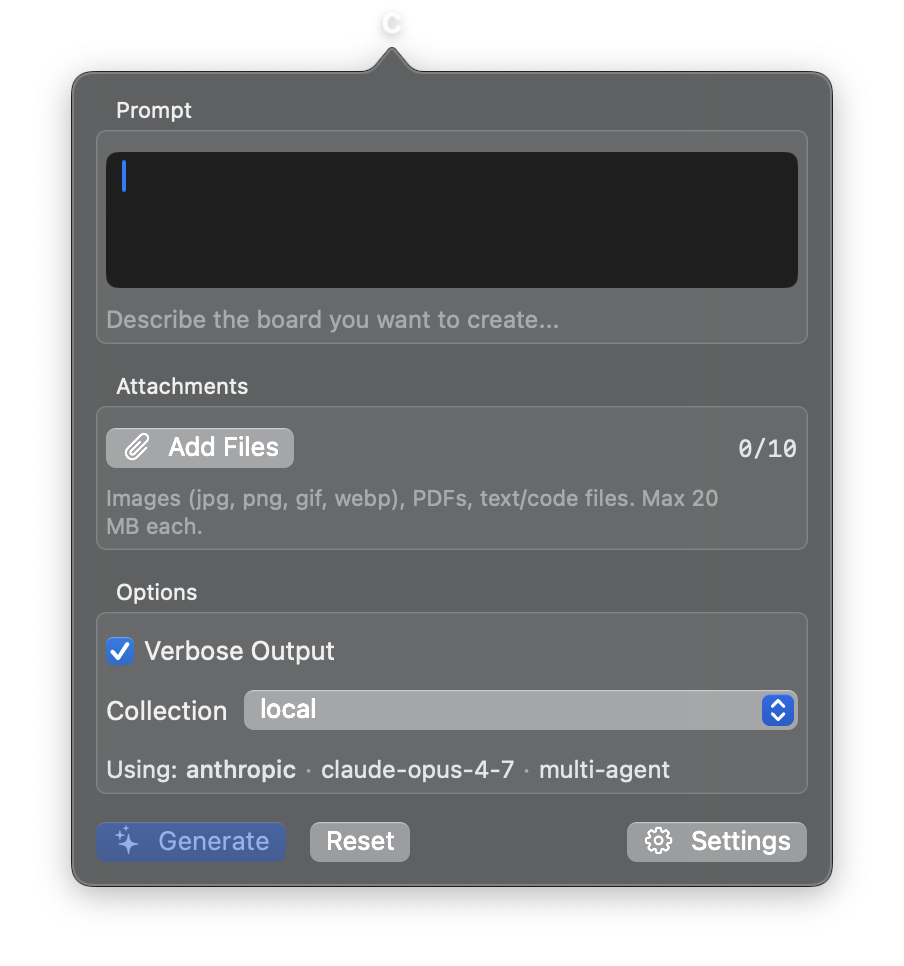
A C icon appears in the macOS menu bar with a popover for generating boards. It includes:
- Prompt editor and attachment picker
- Verbose output toggle and collection selector
- Live CLI output streaming
- Settings button to open the full settings app
Right-click the menu bar icon for additional options (Open Settings, Quit). The popover inherits all your configured defaults from the settings app.
Storage Collections
Boards can be saved to different storage locations:
| Collection | Description |
|---|---|
local | Local device storage |
icloud | iCloud Documents |
dropbox | First available Dropbox collection |
dropbox:NAME | Specific Dropbox folder by name |
To list the collections available on your Mac:
corkulous list --collectionsTroubleshooting
CLI Not Found
Check whether the command is on your path:
command -v corkulousIf nothing prints, install or reinstall from Settings > CLI & Agents, then reopen Terminal and check your PATH.
Check Saved and Environment-Backed Settings
corkulous config envA Generated Board Has Not Appeared
Open Corkulous and check the collection selected for generation. The settings/menu bar helper hands the finished board to Corkulous for import. Wait for that import before judging cloud synchronization on another device. If generation failed, read the error before retrying because a new request can incur another provider charge.
Settings App Does Not Appear
Make sure Corkulous is installed at /Applications/Corkulous.app — the settings app is bundled inside the Corkulous app. You can also use corkulous config to manage settings from the command line.
Get Help for One Command
corkulous <command> --helpExamples:
corkulous generate --help
corkulous config --help
corkulous settings --help