
Working with Styles
Add and edit items to a board /Working with StylesCopy, paste, and save styles to quickly format items and set defaults for new items.
Corkulous gives you style tools to keep formatting consistent across your boards. Copy styles between items, paste them to multiple selections, and save your preferred styles as defaults for new items.
How Styling Works
When you change an item’s formatting (font, color, size, and so on), those changes apply only to that specific item. Your edits won’t affect other items or change how new items are created.
To change the default style for new items, you must explicitly use Save as Insert Style. This gives you full control — you can experiment with formatting without accidentally changing your defaults.
Style Menu
Access style options from the Style menu when an item is selected:
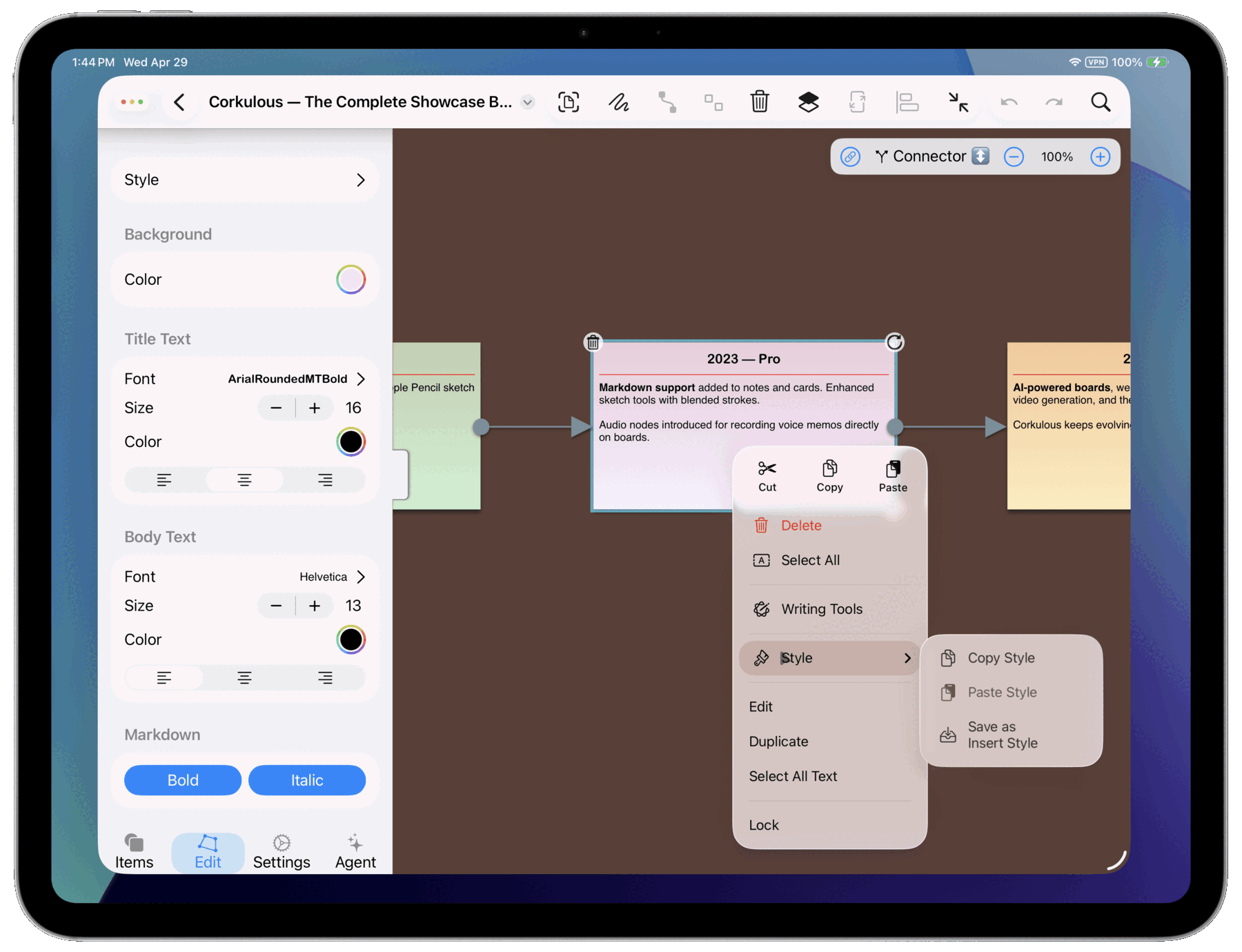
- Copy Style: Copies the current item’s formatting.
- Paste Style: Applies copied formatting to selected items.
- Save as Insert Style: Saves the current formatting as the default for new items of this type.
You can also use keyboard shortcuts on Mac and iPad with a keyboard:
| Action | Shortcut |
|---|---|
| Copy Style | Option-Command-C |
| Paste Style | Option-Command-V |
Copy and Paste Styles
Use Copy Style and Paste Style to quickly apply formatting from one item to others:
- Select the item with the formatting you want to copy.
- Choose Style > Copy Style (or
Option-Command-C). - Select one or more items to format.
- Choose Style > Paste Style (or
Option-Command-V).
What Gets Copied
The style clipboard captures formatting properties relevant to each item type:
| Item Type | Copied Properties |
|---|---|
| Text items (labels, notes, cards, shapes) | Font name and size; text color; text alignment; vertical alignment (where applicable) |
| Cards | Title font, size, and alignment; body font, size, and alignment; background color |
| Shapes | Border color, width, and stroke style; fill color; text properties |
| Connectors and strings | Line color and width; stroke style (solid, dashed, dotted); endpoint styles (arrows, circles, pins); connector type (straight, elbow) |
Cross-Type Pasting
You can paste styles between different item types. Corkulous applies only the properties that make sense for the target item. For example, pasting a card’s style onto a label applies the text formatting but ignores card-specific properties like title/body separation.
Save as Insert Style
Editing an item’s properties only changes that item — it doesn’t affect how new items are created. When you find a style you want to use for all new items of that type, explicitly save it:
- Format an item exactly how you want new items to appear.
- Select the item.
- Choose Style > Save as Insert Style.
On iPad and Mac, you can also open the property editor from the shelf, adjust the item style, then use the style actions from the editor menu.
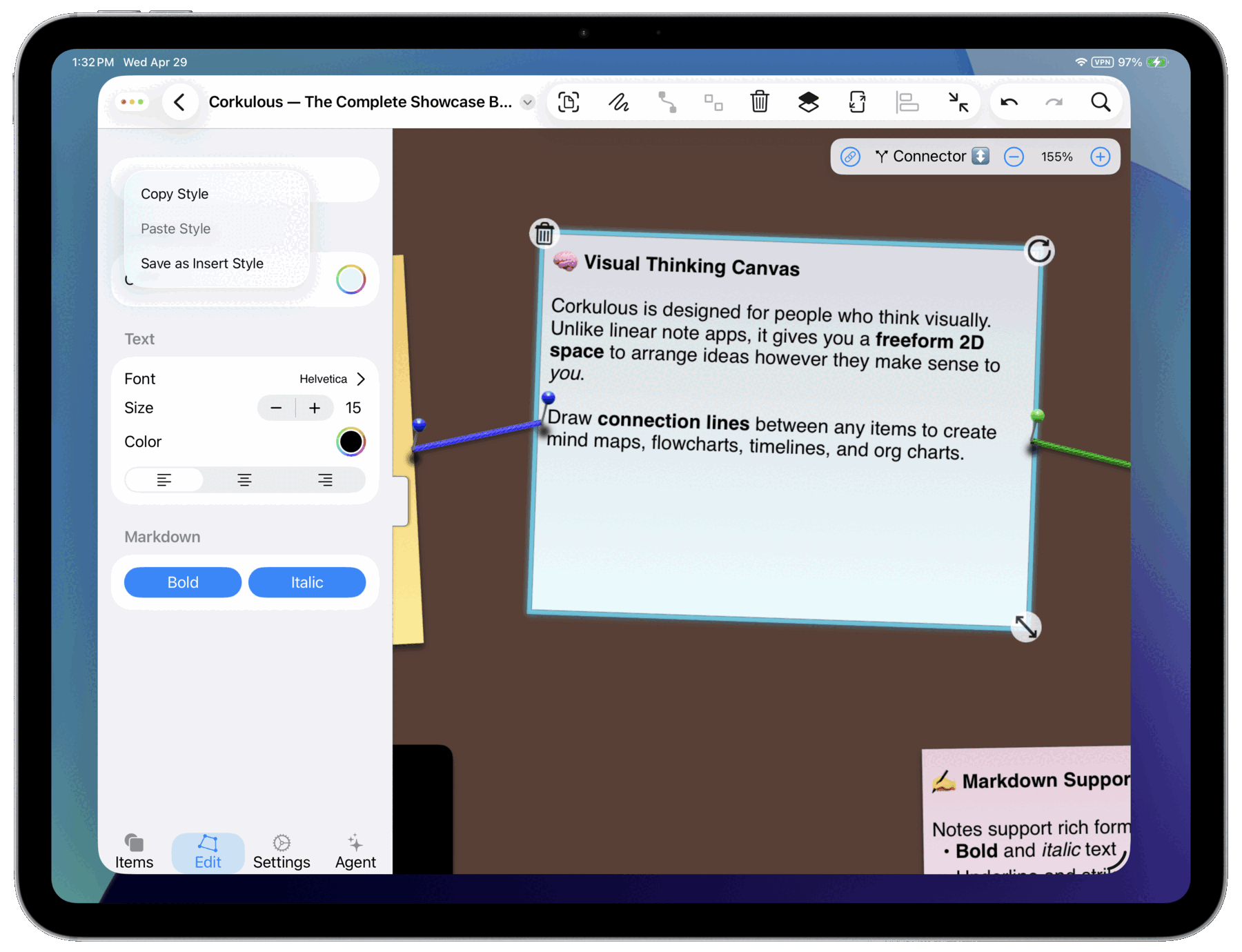
From now on, new items of that type use your saved style. Each item type has its own insert style — saving a label’s style won’t affect how new cards are created.
Example: You change a sticky note’s font to Helvetica and color to blue. That note stays Helvetica blue, but new sticky notes still use the previous default. To make Helvetica blue the default, select the note and choose Style > Save as Insert Style. Now all new sticky notes will be Helvetica blue.
What Gets Saved
Insert styles save all formatting properties for the item type:
| Item Type | Saved Properties |
|---|---|
| Labels | Font, size, color, alignment |
| Sticky notes | Font, size, color, alignment |
| Cards | Title font/size, body font/size, alignments, background color |
| Shapes | Border properties, fill color, text properties |
| Connectors | Line style, color, width, endpoint types |
Resetting to Defaults
To reset an item type’s insert style to Corkulous defaults, create a new item, use Edit > Undo to restore default formatting, then choose Style > Save as Insert Style.
Tips
- Batch formatting: Select multiple items before pasting a style to format them all at once.
- Style consistency: Save your preferred styles early in a project, and new items will match automatically.
- Quick duplication: After styling an item, press
Shift-Command-Nto create a copy with the same formatting.
