
Add an emoji
Add and edit items to a board /Add an emojiAdd resizable emojis to emphasize, decorate, or express ideas visually.
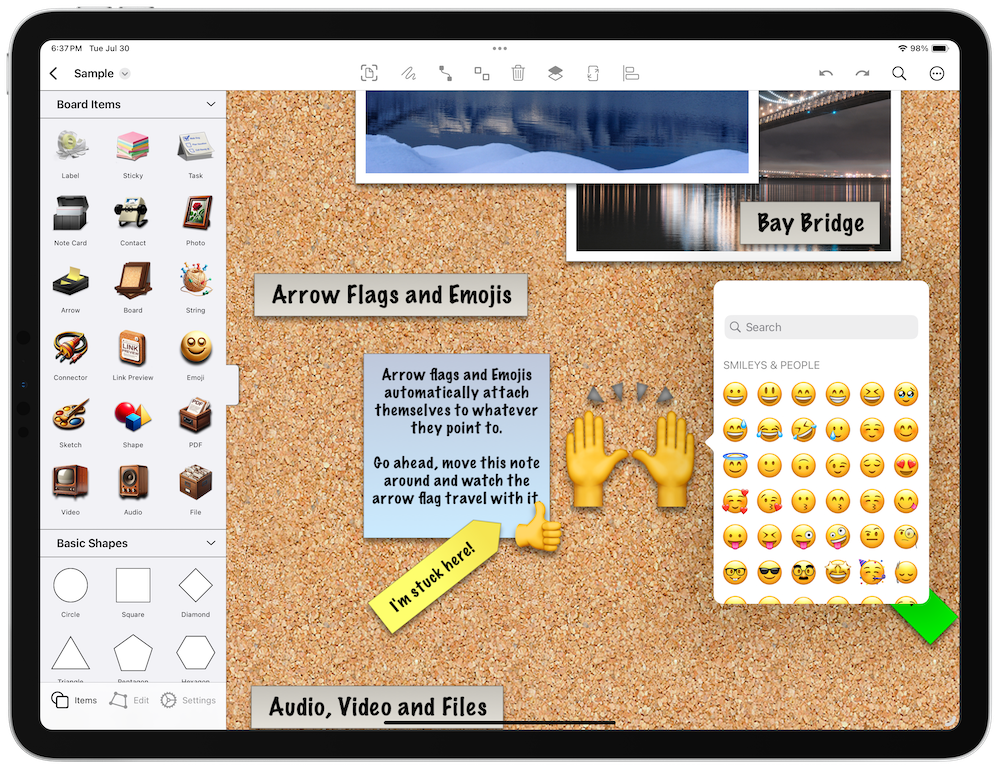
Add any emoji as a resizable item on your board — great for visual emphasis, reactions, or decoration. Emojis are sticky, so they move with the items they’re placed on.
Add an Emoji
Open the shelf: on iPadOS and macOS it’s on the left side of the screen; on iPhone it slides up from the bottom.
- Add an Emoji: Tap the emoji item in the shelf to add it to the board.
- Choose an Emoji: Pick one from the emoji keyboard that appears. Double-tap the emoji later to change it.
- Attach the Emoji: Drag the emoji onto another item to make it stick and move with that item.
Tips
- Create Similar Items: Press
Shift-Command-Nto quickly create a similar item. - Connect Items: On iPad and Mac, enable connector mode (the link button in the overlay controls), select an item, then drag from the arrow handles that appear. Or select two items and tap the pin button in the toolbar. See Organize items with lines for details.
- Automate: Use shortcuts to automate adding emojis to boards.
Next > Add sketches
