Setting Up API Keys
AI Features /Advanced AI (Provider Mode) /Setting Up API KeysGet and configure API keys from AI providers like OpenAI, Anthropic, Google, xAI, and ElevenLabs.
API keys connect Provider Mode to your own accounts with OpenAI, Anthropic, Google, xAI, and ElevenLabs. This guide walks you through getting a key from each provider and adding it to Corkulous. Provider Mode works on Mac and on iPhone and iPad running iOS or iPadOS 26 or later; earlier versions use Credits mode instead of API keys.
Getting API Keys
Each provider has its own signup process.
OpenAI
- Go to platform.openai.com
- Create an account or sign in.
- Navigate to API Keys in settings.
- Click “Create new secret key”.
- Copy the key — it will not be shown again.
Anthropic (Claude)
- Go to console.anthropic.com
- Create an account or sign in.
- Go to API Keys section.
- Create and copy your key.
Google (Gemini)
- Go to aistudio.google.com
- Sign in with your Google account.
- Click “Get API Key”.
- Create and copy your key.
xAI (Grok)
- Go to console.x.ai
- Create an account or sign in.
- Navigate to API Keys.
- Create and copy your key.
ElevenLabs (Music + Audio)
- Go to elevenlabs.io
- Create an account or sign in.
- Go to your Profile settings.
- Find and copy your API key.
Note: ElevenLabs is required for Provider Mode music generation. Configure its API key in the ElevenLabs provider card, then use the Tools tab only for the Music tool toggle. See Tools Configuration for details.
Adding Keys to Corkulous
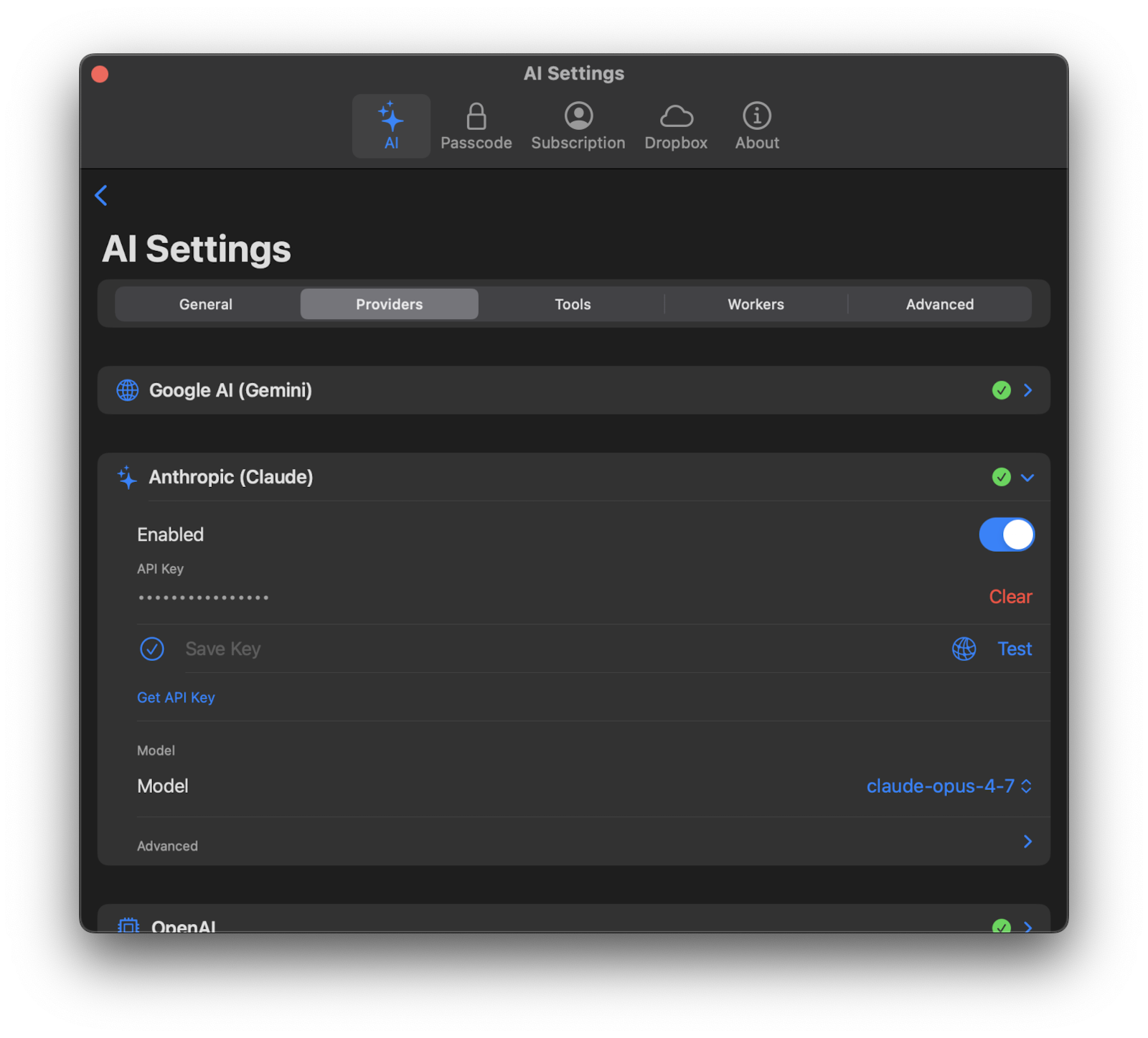
- Open Settings → AI Settings.
- Select “Provider Mode”.
- Go to the Providers tab.
- Open the provider you want to add.
- Paste your API key.
- Tap Save.
- Optionally tap Test to verify your key works.
Important: Keep your API keys secure and never share them publicly. The main app stores Provider Mode keys in your device Keychain. The CLI and menu bar helper have separate settings and can store keys in a local JSON configuration file; see CLI key storage.
If you want video generation in Provider Mode, add a Google or xAI key. OpenAI no longer provides video generation in Corkulous.
After Saving a Key
Stay in the Providers tab to choose that provider’s models and open its nested Defaults and Advanced sections:
- Defaults stores saved media settings for that provider.
- Advanced handles provider-specific tuning such as reasoning, timeout, temperature, top-p, and max output tokens.
Enabling Music in Provider Mode
To generate music in Provider Mode:
- Add your ElevenLabs key in the ElevenLabs provider card in the Providers tab.
- Choose ElevenLabs as the music model/provider in the ElevenLabs provider card.
- Enable the Music tool toggle in the Tools tab for the Agent and board generation music.
Note: The direct Generate Music with AI action in the audio picker still requires the ElevenLabs key and model, but does not require the Music tool toggle.
Enabling and Disabling Providers
In the General tab, each provider has an enable/disable toggle. When a provider is disabled:
- It will not appear in model pickers
- It will not be used for any AI operations
- Your API key remains saved for when you re-enable it
This is useful if you have multiple providers configured but want to temporarily limit which ones are active.
