Create a board
Start from a blank board, a saved template, or a library sample — or let AI generate one for you.
Every project in Corkulous starts with a board, and you can build one from a blank canvas, a saved template, a library sample, or an imported file — or have AI generate one for you. To get started, tap or click the plus button in the navigation bar to open the board creation screen.

Creation Options
- Blank Board: Choose a preset size with a cork background, or set custom dimensions. You can always resize your board later.
- Template: Start from one of your saved templates. Save any board as a template to reuse its layout and design.
- Library: Browse pre-designed sample boards from Corked Labs for inspiration and starting points.
- Import: Bring in existing
.corkulousfiles using the Files app. On iOS, go to On My iPhone or On My iPad > Corkulous. On Mac, use Finder.
Library Boards
The Library tab is more than a small starter set. Corkulous ships with a large bundled library of example boards across science, history, literature, art, mythology, software architecture, incident response, creative writing, and more.
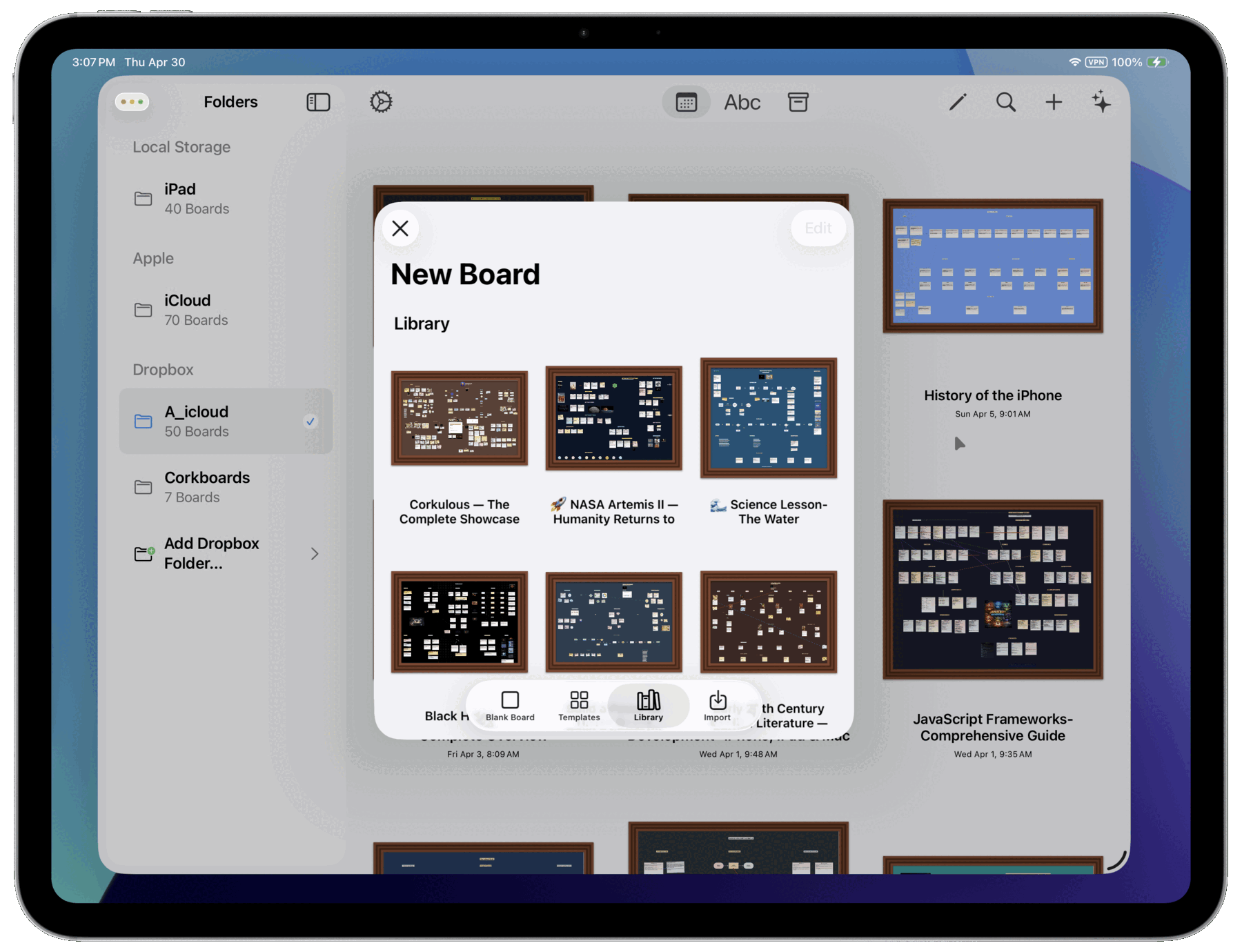
Every board in the bundled library is AI-generated. The library exists to show concrete examples of what polished, content-rich AI board generation can produce in Corkulous. Open these boards, study how they’re structured, duplicate them, and adapt them for your own work.
The library leans heavily toward provider-based workflows — especially Anthropic and Opus-class generation, with some boards also created using Sonnet and OpenAI models. To create boards in this style, we recommend Provider Mode, where you can choose providers, orchestrate tools, and control the models used for generation.
The bundled library currently includes examples such as:
- Science and education: Black Holes, The Cambrian Explosion, Periodic Table Highlights, and lesson-plan boards
- Humanities and culture: Albert Einstein, Greek Mythology, Impressionism, The History of Coffee, Star Trek, and Star Wars
- Professional and technical work: OpenClaw System Architecture and Complex Incident Response Flowchart
- Creative formats: The Novel Writer’s Workshop, The House Listens, and The Enigma Estate
Duplicating and Nesting
- Duplicate: Touch and hold a board (iOS/iPadOS) or right-click (Mac), then select Duplicate.
- Nest boards: Copy and paste boards within other boards to create hierarchies.
- Save as template: Create a template from any board to reuse its design.
Create Boards with AI
Corkulous can generate a complete board from a simple description. Tell it what you want, and AI creates a fully designed board with cards, notes, labels, shapes, and connections.
How It Works
- Tap the AI board generator button on the home screen.
- Describe the board you want — for example, “Create a project roadmap for launching a mobile app.”
- AI generates and creates the board automatically.
AI board generation works with the Credits System (email sign-in, no API keys) on iPhone, iPad, and Mac, and with Provider Mode (more control and model choice) on Mac and on iPhone and iPad running iOS or iPadOS 26 or later.
What AI Can Create
- Project plans and roadmaps
- Flowcharts and process diagrams
- Brainstorming and mind maps
- Comparison boards
- Educational content and summaries
- Meeting agendas and notes templates
Once your board is created, refine it with the Agent to add more items, or edit it manually in the app.
See AI Features for more details on AI capabilities.
