Add audio
Add and edit items to a board /Add audioAdd recordings, imported files, AI narration, or AI music to your boards.
Add audio files to your boards, record directly in Corkulous, or generate AI audio and music. Supported import formats include MP3, AIFF, AAC, and M4A.
Audio is great for:
- Voice memos and meeting recordings
- Podcast clips and sound bites
- Music tracks and sound effects
- AI-generated narration
- AI-generated songs and instrumentals
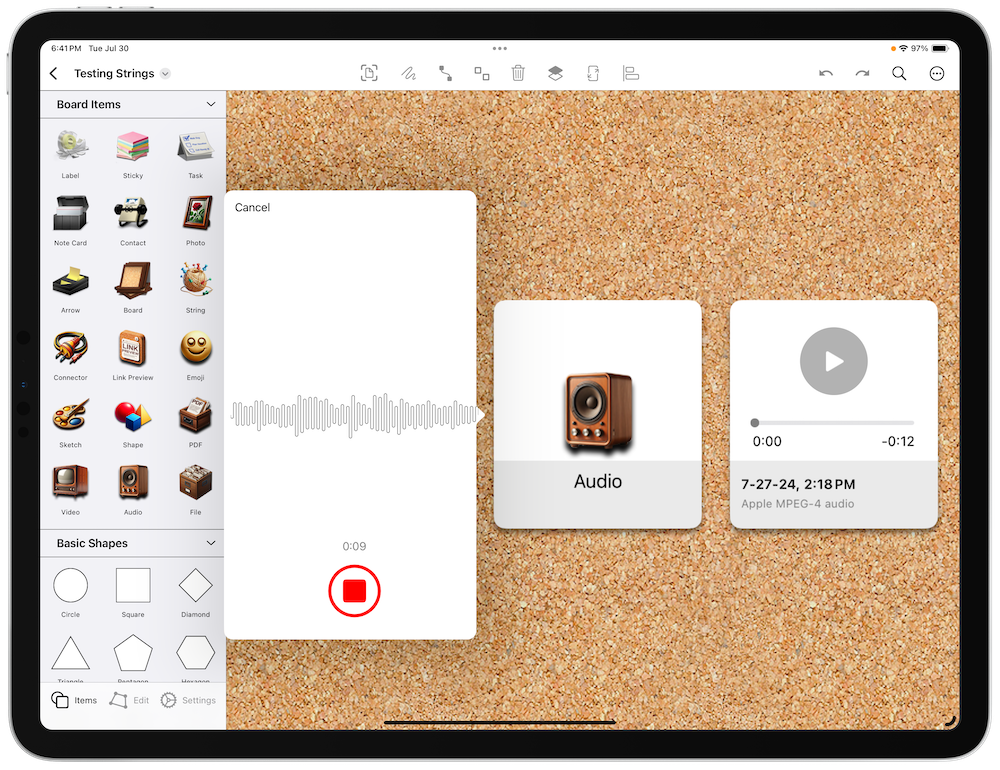
Add an Audio Item
Open the shelf: on iPadOS and macOS it’s on the left side of the screen; on iPhone it slides up from the bottom.
- Add an Audio Item: Tap the audio item in the shelf, or touch and hold to drag it into position.
- Choose a Source: Select how you want to add audio.
Audio Menu Options
When you add an audio item, Corkulous can show:
- Files App: Import an existing audio file.
- Record Audio: Capture a new recording.
- Generate Audio with AI: Create spoken narration.
- Generate Music with AI: Create original music (Credits mode, or Provider Mode with ElevenLabs configured).
Generate Audio with AI (Narration)
Use this when you want spoken text.
- Choose Generate Audio with AI.
- Enter narration text.
- Generate and preview.
- Tap to add it to the board.
Generate Music with AI
Use this when you want songs, beats, or instrumental tracks.
- Choose Generate Music with AI.
- Describe the track (style, mood, subject, duration).
- Optionally request instrumental or vocal.
- Generate, preview, then add to your board.
Availability depends on your AI mode:
| Mode | Availability |
|---|---|
| Credits mode | Available on iPhone, iPad, and Mac with no provider setup |
| Provider Mode | Shown only when an ElevenLabs API key and music model are configured |
Generate Audio or Music with the Agent
You can also ask the Agent:
- Narration example: “Create audio narration of this board.”
- Music example: “Create a 30-second upbeat instrumental for this board.”
Tips
- Create Similar Items: Press
Shift-Command-Nto quickly create a similar item. - Long Narration Requests: Very long narration may be split into multiple audio items automatically.
- Connect Items: On iPad and Mac, enable connector mode (the link button in the overlay controls), select an item, then drag from the arrow handles that appear. Or select two items and tap the pin button in the toolbar. See Organize items with lines for details.
- Drag and Drop or Paste Audio: Add audio by dragging and dropping or pasting files. Learn more about drag and drop on iPadOS from Apple Support.
- Automate: Use shortcuts to automate adding audio to boards.
Next > Add Files
