
Style text with markdown
Format text with bold, italics, lists, headers, links, images, and tables using Markdown.
Markdown lets you format text using simple symbols. Use it in sticky notes, note cards, and shapes to add bold, italics, lists, headers, links, and more. The property editor includes toolbar buttons to help you insert Markdown formatting.
Markdown Basics
| Format | Syntax | Notes |
|---|---|---|
| Bold | **text** or __text__ | |
| Italic | *text* or _text_ | |
| Bold + italic | ***text*** | |
| Inline code | `text` | Wrap text in backticks |
| Link | [Link text](url) | Links are also detected automatically |
| Image |  | Or insert from the toolbar |
Lists
Use + or * at the start of a line. Add more + or * symbols to increase the indent level.
+ First bullet
++ Indented bullet
+ Another bullet
Quotes
Use > at the start of a line. Add more > symbols to increase indent.
> This is quoted
> text
Headers
Use # at the start of a line. More # symbols create smaller headers (up to 6).
# Header level 1
## Header level 2
### Header level 3
Text Color
Use (#hex) to set a color and (#) to return to the previous color.
(#0000FF)Blue text (#) back to defaultTables
Tables use pipes and a separator row:
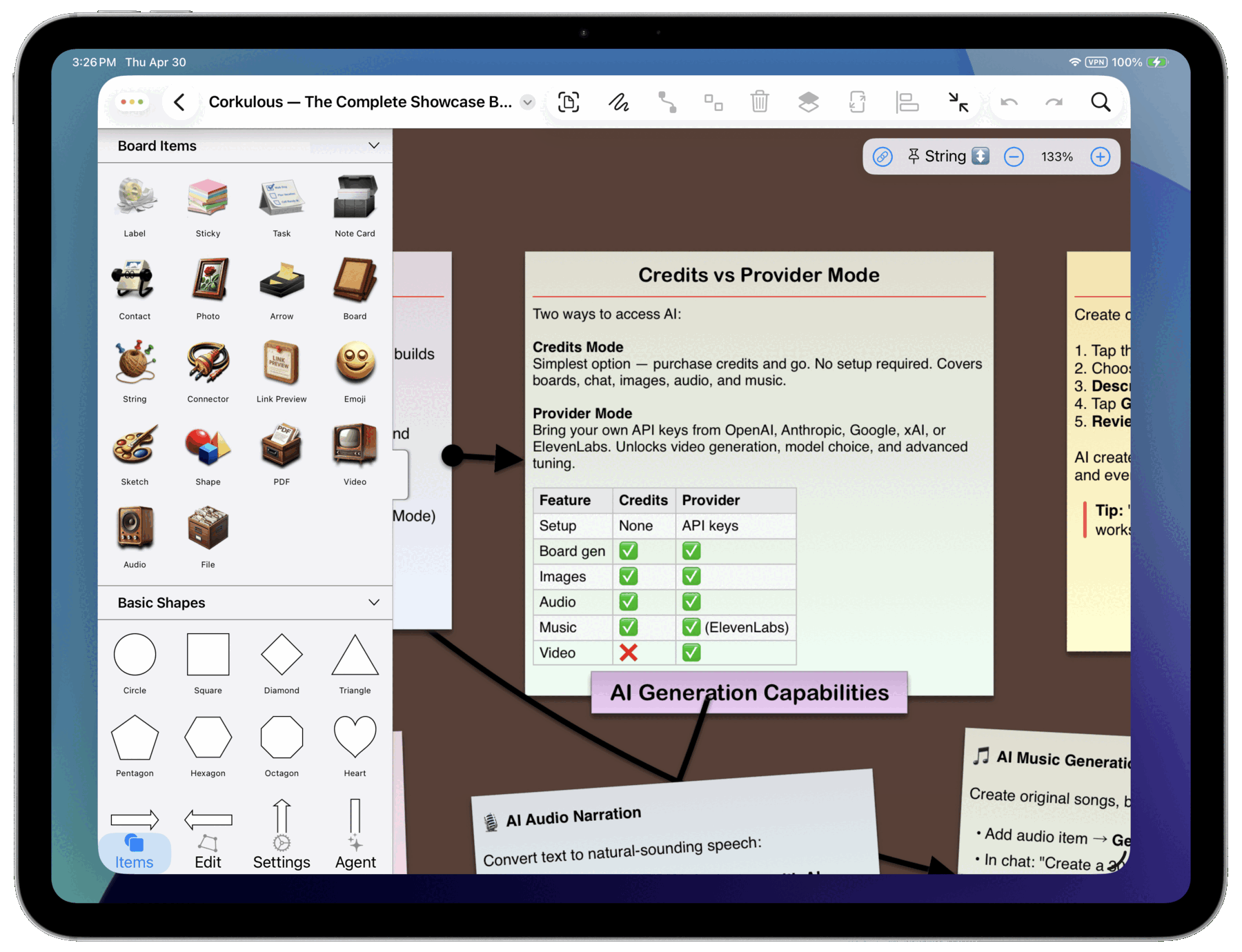
| Feature | Status | Notes |
|:--|:--:|--:|
| Inline tables | Yes | left / center / right |
| Row striping | Yes | alternating rows |
| Borders | Yes | 1px |
| Long text | Yes | should wrap |
Separate multiple tables with a blank line.
Board Settings → Markdown Table Colors lets you toggle table colors and pick colors for the header and alternating rows. Defaults: header #ebebeb, rows #f7f7f7. Turn off colors to render plain tables.
HTML exports respect these table color settings.
Tips
- Escape special characters: To treat a special Markdown character as regular text, precede it with a backslash (
\). - Change levels quickly: Use the indent and outdent buttons in the toolbar to change the level of your current quote, header, or list item.
- Jump past closing tags: If you use the toolbar bold button to insert bold text, pressing the bold button again moves your cursor past the closing bold tag. This also works for italics and code.
