
Now available: Corkulous 9.0 is on the App Store for iPhone, iPad, and Mac.
Corkulous 9.0 gives Mac users several ways to work with boards beyond the main window. Use Terminal for scripts, the menu bar for a quick generation request, or a connected assistant for a conversation that can read and create boards.
Start in CLI & Agents
Open Corkulous → Settings → CLI & Agents to install the bundled Command Line Tool. The installer chooses an appropriate command location for your Mac, including a Homebrew bin folder when available.
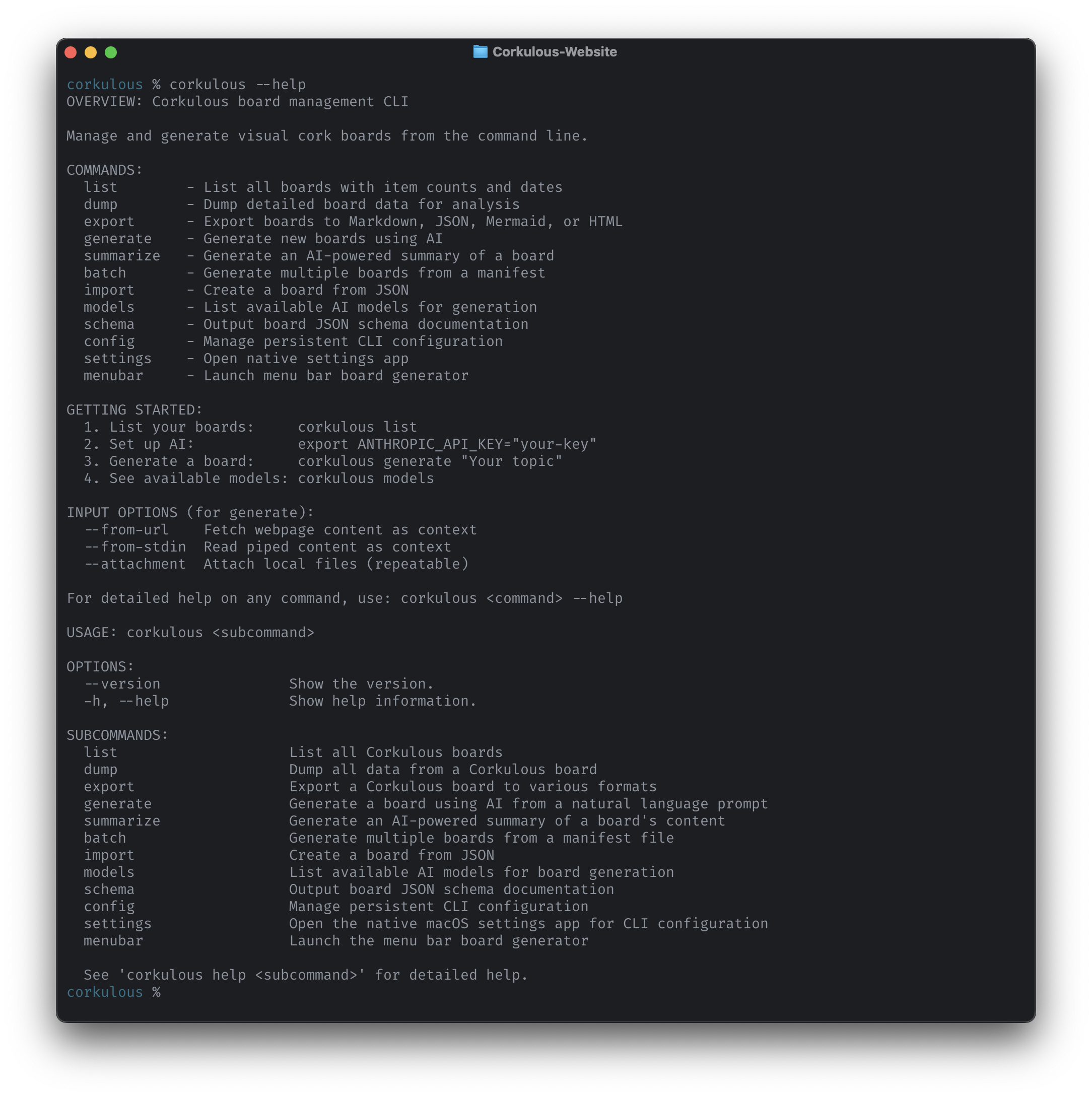
After updating Corkulous, Reinstall… refreshes an older installed CLI. Check the command in Terminal with:
corkulous --version
corkulous --help
Installation and troubleshooting.
Configure the CLI in Its Own Settings App
Run corkulous settings to open the native settings interface. Configure providers, models, web tools, workers, and generation defaults without editing a file by hand. The Generate pane can start a board with attachments and show progress as the CLI runs.
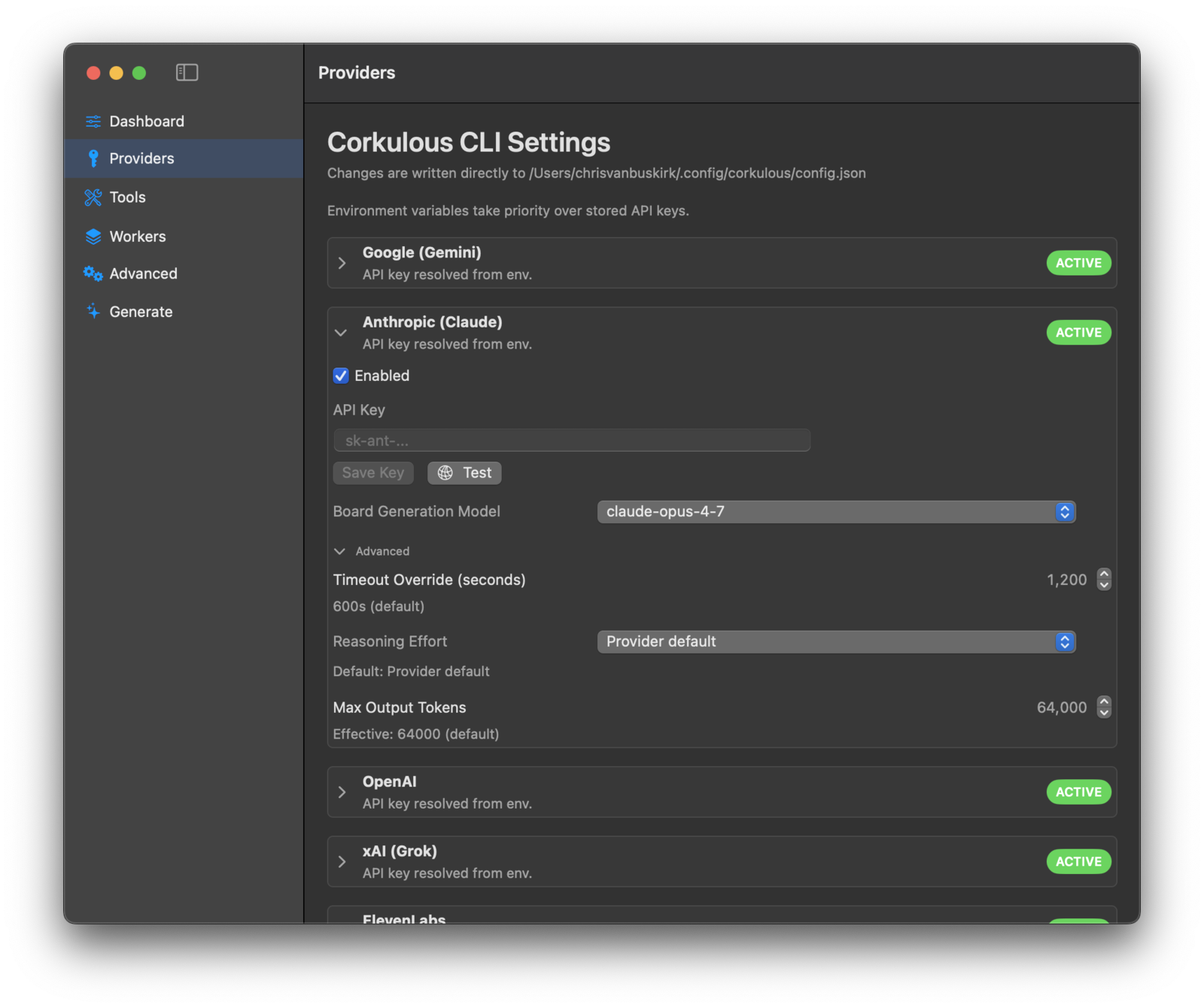
The CLI’s provider configuration is separate from the main app’s AI settings. Saved CLI keys use a local JSON configuration file, not the main app’s Keychain. Keep that file private and out of shared folders or source control.
Generate from the Menu Bar
Run corkulous menubar to open the menu bar generator. It gives you a place to start board generation without entering a Terminal command each time.
The helper uses the CLI’s saved provider settings and hands completed boards to Corkulous for import. Keep Corkulous installed and open it to complete the import. Cloud synchronization to another device happens separately.
CLI and menu bar AI generation use provider API keys and separate provider billing. They do not spend your Corkulous Credits balance. Multi-agent generation can make several billable calls.
Script the Repetitive Work
List boards, inspect their contents, import JSON, or export to HTML/ZIP, Web Archive, Markdown, JSON, and Mermaid. AI commands can generate or summarize boards using your configured provider.
# List your boards
corkulous list

# Export an existing board
corkulous export "My Project" --format html
corkulous export "My Project" --format markdown

# Generate a small board using your configured API provider
corkulous generate "Create three notes about coffee brewing methods" --name "Coffee Brewing Methods" --no-multi-agent
The batch command generates multiple boards from a manifest. To repeat exports, use a script or Shortcuts workflow. Start with a small job before running a large batch.
Connect Claude, Codex, or Cursor
The CLI & Agents pane can configure Corkulous’s local MCP server for Claude Desktop, Claude Code, Codex, and Cursor. Through the available tools, connected assistants can list accessible boards, read their contents, export them, and create new boards.
For example, ask an assistant to inspect a project board, summarize its contents, and create a separate planning board from the discussion. A tool that invokes Corkulous’s AI generation can incur provider charges in addition to the assistant’s own costs.
A local MCP connection does not mean everything stays on your Mac. The assistant may send board data to its providers and retain it in conversation history. Review its permissions and our provider and assistant privacy links before connecting confidential material. Disconnecting does not erase copies already held elsewhere.
Build Workflows with Apple Shortcuts
Corkulous’s Shortcuts actions can create boards, add items, connect them, and export results. Combine them with other apps for a recurring project setup or a repeatable import/export workflow. Shortcuts support also extends to iPhone and iPad; CLI and MCP integration are Mac features.

Review the actions and sharing destinations before running a workflow, especially when it replaces files, deletes boards, or sends content to another service.
